Transpose Table: Swap Excel Rows and Columns Instantly
Rows and columns in your Excel table going the wrong direction? Transpose Table flips them in one click — result goes to a new sheet so your original stays safe.

Essential Settings for Transpose Table
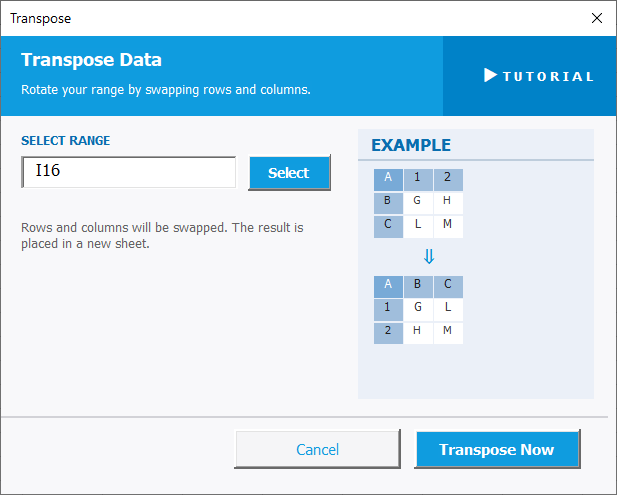
To open Transpose Table, go to the XLclick tab, find the Organize group, then click Transform > Transpose Table.
The panel is simple and requires just one step:
SELECT RANGE — Click Select and highlight the table or range you want to flip. Row headers will become column headers and column headers will become row headers.
A note confirms: Rows and columns will be swapped. The result is placed in a new sheet. Your original data remains completely untouched.
An EXAMPLE panel on the right shows a visual preview of how the table will be rotated before you run it.
Click Transpose Now to apply and see the result on the new sheet, or Cancel to exit without any changes.
Real-World Scenarios: Top Use Cases for Excel Transpose Table
A Marketing Analyst Whose Pivot Table Needs Months as Rows Instead of Columns
A marketing analyst built a performance report in Excel with months across the top as column headers and metrics going down the rows. Her dashboard tool required the opposite orientation — months as rows and metrics as columns. Manually restructuring the entire table would have taken an hour and risked data errors.
Transpose Table flipped the entire table in one click. The result appeared on a new sheet, and she connected the dashboard tool to it immediately.
A Freelance Consultant Reformatting a Client's Budget Table for a Presentation
A freelance consultant received a budget table from a client with departments as rows and expense categories as columns. The PowerPoint slide template had the layout reversed — departments needed to be across the top, expense categories going down. Rebuilding the table manually in the presentation was messy and slow.
Transpose Table produced the correctly oriented version on a new sheet in seconds. The data was copied straight into the slide without any restructuring.
A Small Business Owner Swapping Product and Month Orientations in a Sales Report
A small business owner tracked monthly sales with products listed across the top and months going down the rows. When she tried to create a chart by product over time, Excel couldn't read it in the right direction. The entire table needed to be flipped.
Transpose Table swapped the orientation to a new sheet in one click. The chart was built correctly from the transposed version, and the original table was left intact for reference.
An HR Manager Reformatting a Headcount Table for a Different Reporting Tool
An HR manager maintained a headcount table in Excel with job titles as columns and departments as rows. A new workforce analytics tool required the exact opposite layout. Rebuilding the table manually for 15 departments and 30 job titles was a significant time investment.
Transpose Table flipped it in one click. The correctly oriented table landed on a new sheet and was imported into the analytics tool the same day.
A Research Team Rotating a Data Matrix for Statistical Analysis
A research team collected survey data in Excel with respondents as columns and questions as rows — a common structure for data entry. Their statistical analysis software required respondents as rows and questions as columns. Manually transposing the matrix would have been error-prone across hundreds of rows and columns.
Transpose Table rotated the entire matrix in one click, outputting the correctly oriented dataset to a new sheet. The analysis software imported it without any issues.

Excel has always been my laboratory. After years of navigating data-heavy workflows, I created XLclick: the definitive add-in that simplifies complex analysis into a single click. It’s built for pros who want to spend less time on spreadsheets and more time on strategy.