Combine sheets: Merge Multiple Excel Files & Sheets
Monthly Excel reports scattered across separate files or sheets? Combine Sheets merges them all into one place in a single operation — no copy-paste, no manual stacking.

Essential Settings for Combine sheets
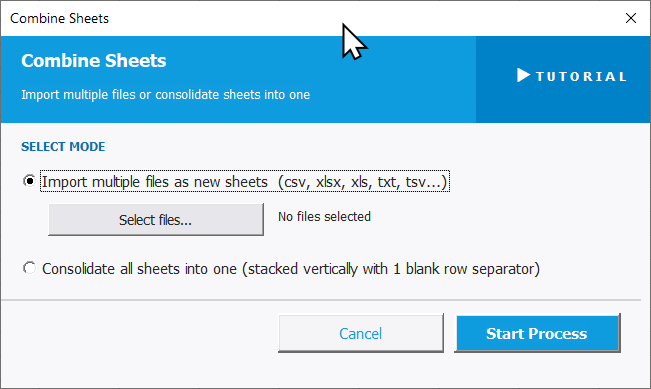
To open Combine Sheets, go to the XLclick tab, find the Organize group, then click Combine > Combine Sheets.
The panel offers two modes — choose the one that fits your task:
- Import multiple files as new sheets — click Select files... to choose multiple external files (xlsx, csv, xls, txt, tsv and more). Each file is imported as a separate new sheet in your current workbook. Use this when you want all files in one place but each on its own tab.
- Consolidate all sheets into one — stacks all existing sheets in the current workbook into a single sheet, one after another with a blank row separator between each. Use this when you want all data in one continuous table for analysis or export.
Click Start Process to run the selected mode, or Cancel to exit.
Real-World Scenarios: Top Use Cases for Excel Combine sheets
A Financial Controller Consolidating 12 Monthly Reports Into One Workbook
A financial controller received a separate Excel file from each department every month — 12 files for 12 months, all with the same structure. Reviewing annual trends meant opening each file individually. Combining them manually took over an hour every time the task came up.
Combine Sheets with Import multiple files as new sheets brought all 12 files into one workbook as separate tabs in one click. The full year was in one place and ready for analysis immediately.
A Freelance Data Analyst Stacking Weekly Exports Into One Dataset
A freelance data analyst received weekly sales exports from a client — each as a separate Excel file. For trend analysis, he needed all weeks stacked into one continuous dataset. Manually copying and pasting 20 sheets row by row was both slow and error-prone.
Combine Sheets with Consolidate all sheets into one stacked every sheet into a single table with consistent structure. The full dataset was ready for pivot analysis within minutes.
A Small Business Owner Merging Sales Data From Multiple Team Members
A small business owner had five sales reps each submitting a weekly Excel report. Every Sunday she spent 30 minutes opening each file and manually copying the data into a master sheet. It was repetitive, error-prone, and ate into her Sunday every week.
Combine Sheets with Import multiple files as new sheets imported all five rep files into one workbook at once. She then used Consolidate all sheets into one to stack them into the master table. The whole process now takes under two minutes.
A Marketing Team Merging Campaign Results From Different Channel Reports
A marketing team tracked performance for email, social, and paid channels in separate Excel files. For the monthly board report, all three needed to be in one file — each as its own tab so leadership could navigate between them easily. Doing it manually was a monthly chore.
Combine Sheets with Import multiple files as new sheets merged all three channel reports into a single workbook in one operation. The board report was ready to format and distribute the same day.
An Operations Manager Compiling a Regional Report From Multiple Branch Files
An operations manager received Excel files from six regional branches every quarter, each formatted identically. She needed all branch data in one stacked table for consolidated reporting. Copying each sheet manually introduced row misalignments and took over two hours per quarter.
Combine Sheets imported all six files as tabs, then Consolidate all sheets into one stacked them into a clean continuous table. The quarterly consolidation now takes minutes instead of hours.

Excel has always been my laboratory. After years of navigating data-heavy workflows, I created XLclick: the definitive add-in that simplifies complex analysis into a single click. It’s built for pros who want to spend less time on spreadsheets and more time on strategy.