Reverse Horizontal: Reverse Excel Column Order
Excel columns in the wrong left-to-right order for your report or chart? Reverse Horizontal mirrors the column order in one click — safely, on a new sheet.

Essential Settings for Reverse Horizontal
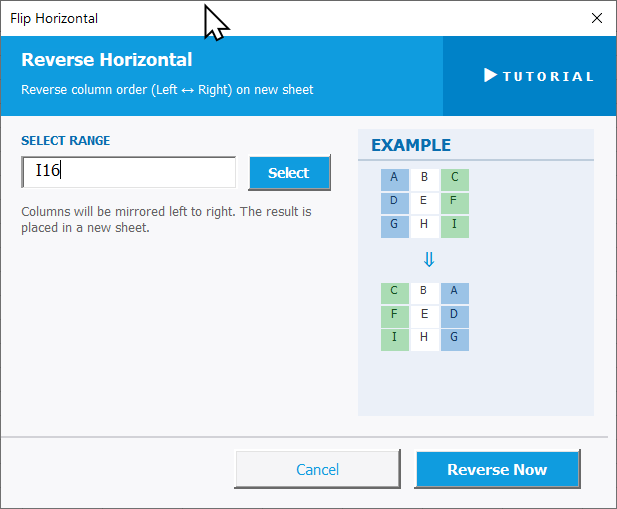
To open Reverse Horizontal, go to the XLclick tab, find the Organize group, then click Transform > Reverse Horizontal.
The panel requires just one step:
SELECT RANGE — Click Select and highlight the range or table whose column order you want to reverse. The leftmost column will become the rightmost, and vice versa — all columns are mirrored.
A note confirms: Columns will be mirrored left to right. The result is placed in a new sheet. Your original data is never modified.
An EXAMPLE panel on the right gives a visual preview of how the columns will flip before you run it.
Click Reverse Now to apply and see the result on the new sheet, or Cancel to exit without changes.
Real-World Scenarios: Top Use Cases for Excel Reverse Horizontal
A Financial Analyst Whose Timeline Chart Needs Dates Running Right to Left
A financial analyst built a budget timeline in Excel with the oldest year on the left and the most recent on the right — the natural entry order. His presentation template required the most recent year on the left. Manually cutting and re-pasting 10 columns without breaking formulas was risky.
Reverse Horizontal mirrored the column order to a new sheet in one click. The chart was rebuilt from the new layout in minutes, and the original data stayed intact.
A Marketing Manager Flipping a Campaign Comparison Table for a Slide
A marketing manager had a campaign comparison table in Excel with the weakest campaign on the left and the strongest on the right. For a client presentation, she wanted the best-performing campaign to lead — on the far left. Rearranging the columns manually risked breaking the linked charts.
Reverse Horizontal flipped the column order to a new sheet instantly. She copied the reversed table into the slide without touching the original source data.
A Small Business Owner Reversing a Price Comparison Table for a Supplier Meeting
A small business owner had a supplier comparison table listing cheapest to most expensive from left to right. For her negotiation meeting, she wanted to lead with the most expensive option to anchor the discussion. Manually rearranging eight supplier columns would have taken meaningful time to do without errors.
Reverse Horizontal flipped the table to the new orientation on a new sheet in one click. The reversed table was ready to print for the meeting within seconds.
A Data Analyst Correcting Column Order From a Misconfigured Export
A data analyst received an automated export from a legacy system that output the columns in reverse chronological order — most recent data on the left, oldest on the right. Every analysis tool he used expected oldest-to-newest. He had to flip the column order every time a new export arrived.
Reverse Horizontal became his standard first step after each export. One click produced the correctly ordered dataset on a new sheet, ready for analysis without any manual column shuffling.
An E-Commerce Team Reversing a Regional Sales Table for a Regional Manager
An e-commerce team had a sales table with regions ordered alphabetically left to right. A regional manager from the rightmost region complained that her data was always the last thing anyone looked at. She wanted her region's column on the far left for her weekly review meetings.
Reverse Horizontal mirrored the table on a new sheet in one click. The manager got her region front and center, and the original report structure was preserved for the rest of the team.

Excel has always been my laboratory. After years of navigating data-heavy workflows, I created XLclick: the definitive add-in that simplifies complex analysis into a single click. It’s built for pros who want to spend less time on spreadsheets and more time on strategy.