Combine Rows: Merge Multiple Excel Rows into One Cell
Multiple Excel rows for the same item that should be collapsed into one cell? Combine Rows merges them with any separator you choose — instantly, without formulas.

Essential Settings for Combine Rows
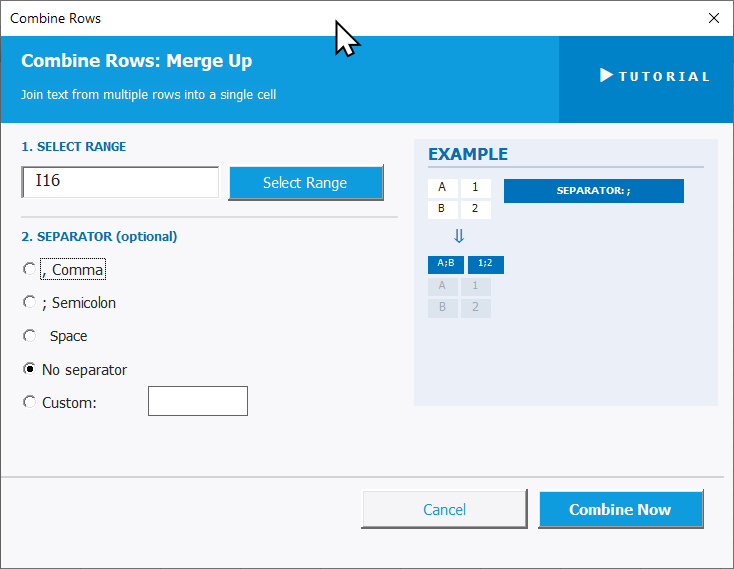
To open Combine Rows, go to the XLclick tab, find the Organize group, then click Combine > Combine Rows.
The panel walks you through two steps:
1. SELECT RANGE — Click Select Range and highlight the rows you want to merge. The tool combines all selected values top to bottom into the first cell of the selection.
2. SEPARATOR (optional) — Choose what to place between the merged values:
- , Comma — joins values with a comma.
- ; Semicolon — joins with a semicolon.
- Space — joins with a single space.
- No separator — merges values with nothing between them.
- Custom — enter any character or string in the input field.
An EXAMPLE panel on the right shows how the combination will look with the current separator setting.
The merged result is written into the first selected cell, collapsing the rows below it. Click Combine Now to apply, or Cancel to exit.
Real-World Scenarios: Top Use Cases for Excel Combine Rows
A Marketing Manager Consolidating Tags From Multiple Rows Into One Cell per Product
A marketing manager had a product spreadsheet where each tag was on its own Excel row — three to five rows per product. She needed to consolidate all tags for each product into a single cell before importing into her CMS, which expected one row per product with a comma-separated tag field.
Combine Rows with Comma as the separator merged the tag rows into one cell per product in seconds. The import was completed without any restructuring of the original file.
A Freelance Content Strategist Merging Split Interview Quotes Into Single Entries
A freelance content strategist pasted interview transcripts into Excel, ending up with each sentence of a quote on its own row. For her content brief, she needed each full quote in a single cell. Manually joining hundreds of sentence fragments by copying and pasting was going to take hours.
Combine Rows with Space as the separator stitched the sentence rows back together into complete quotes in one click. The content brief was finished the same afternoon.
A Small Business Owner Collapsing a Multi-Row Ingredient List Into One Recipe Cell
A small business owner managed her product recipes in Excel with each ingredient on its own row under a product name. She needed to export the recipes to her website where each product listing required a single ingredients field. The multi-row structure made that impossible without restructuring.
Combine Rows with Custom separator set to a comma-space collapsed every ingredient list into a single cell per product. The export was web-ready immediately.
An HR Team Merging Multi-Row Skill Lists Into a Single Profile Field
An HR team maintained an employee skills database in Excel where each skill was on its own row per employee. When exporting to the new HR platform, the system required a single Skills field per employee. Manually joining the skill rows for 150 employees would have taken the better part of a day.
Combine Rows with Semicolon as the separator merged each employee's skills into one cell. The platform import file was built and uploaded the same day.
An Agency Preparing a Brief With Multiple Keywords Merged Per Topic
A content agency had a keyword research spreadsheet where each target keyword was on its own row under a topic group. The client brief format required one row per topic with all keywords in a single cell. Restructuring 20 topic groups with 10-15 keywords each manually would have been tedious.
Combine Rows with Comma collapsed all keywords under each topic into one cell per topic. The brief was formatted and ready to send in a fraction of the time.

Excel has always been my laboratory. After years of navigating data-heavy workflows, I created XLclick: the definitive add-in that simplifies complex analysis into a single click. It’s built for pros who want to spend less time on spreadsheets and more time on strategy.