Reverse Vertical: Reverse Excel Row Order
Your Excel list is sorted oldest-to-newest but you need newest-first? Reverse Vertical flips the row order in one click — no sorting, no formulas, result on a new sheet.

Essential Settings for Reverse Vertical
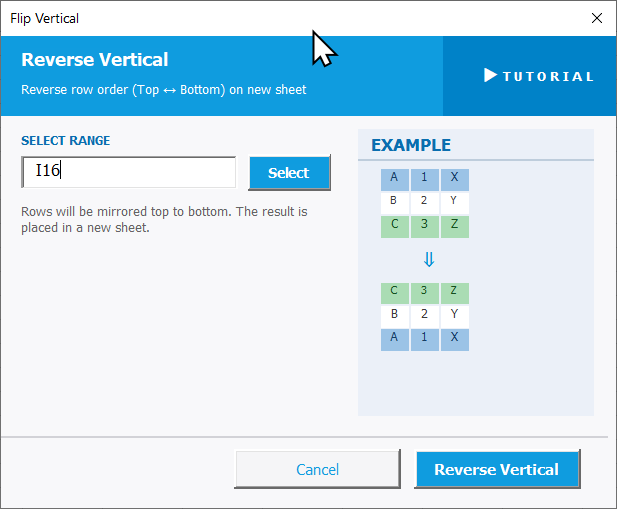
To open Reverse Vertical, go to the XLclick tab, find the Organize group, then click Transform > Reverse Vertical.
The panel requires just one step:
SELECT RANGE — Click Select and highlight the range or table whose row order you want to invert. The last row becomes the first row, and the first row becomes the last — the entire list is mirrored top to bottom.
A note confirms: Rows will be mirrored top to bottom. The result is placed in a new sheet. Your original data is never modified.
An EXAMPLE panel on the right gives a clear visual preview of how the rows will flip.
Click Reverse Vertical to apply and see the result on the new sheet, or Cancel to exit without changes.
Real-World Scenarios: Top Use Cases for Excel Reverse Vertical
A Sales Manager Who Needs the Most Recent Deals at the Top of the Report
A sales manager maintained a deal log in Excel where new entries were always added at the bottom — oldest deal at the top, newest at the bottom. Every time he shared the report in a meeting, he had to scroll to the bottom to see current activity. Sorting by date would break custom groupings in the sheet.
Reverse Vertical flipped the entire list to a new sheet in one click. The most recent deals appeared at the top, and the original log remained untouched for ongoing entry.
A Freelance Journalist Reversing a Timeline of Events for a Story
A freelance journalist compiled a chronological timeline of events in Excel for a long-form article — earliest event at the top. When the editor requested the narrative to start from the most recent event and work backwards, the entire list needed to be inverted.
Reverse Vertical flipped all 150 rows in one click. The reversed timeline was copied into the article structure immediately, saving significant manual rearrangement.
A Small Business Owner Inverting a Transaction History Before Sharing With an Accountant
A small business owner's accounting software exported transaction history with the oldest transactions first and the newest at the bottom. Her accountant always asked for the most recent transactions at the top. Re-sorting was risky because custom row notes would lose their association with the right transactions.
Reverse Vertical mirrored the list to a new sheet, putting the newest entries first. The accountant received the file in the expected format every time.
A Marketing Analyst Reversing a Ranking Table to Show Worst Performers First
A marketing analyst built a campaign ranking table sorted best-to-worst by conversion rate. For a performance review focused on what needed fixing, she needed the worst performers at the top. Standard sorting would have overwritten her carefully structured layout.
Reverse Vertical inverted the ranking table to a new sheet in one click. The review meeting started with the campaigns that needed the most attention, without touching the original ranked report.
An Operations Team Reversing a Log File Exported Oldest-Entry-First
An operations team exported a system event log into Excel for incident analysis. The log always came out oldest-first — making it necessary to scroll thousands of rows to find the most recent events relevant to the current incident. Every investigation started with this same frustrating step.
Reverse Vertical became the team's standard first step after each export. One click flipped the log to newest-first on a new sheet, cutting the time to reach relevant events from minutes to seconds.

Excel has always been my laboratory. After years of navigating data-heavy workflows, I created XLclick: the definitive add-in that simplifies complex analysis into a single click. It’s built for pros who want to spend less time on spreadsheets and more time on strategy.