Text to Columns: Split One Excel Column into Many
Got a single Excel column with comma-separated values that should be in separate columns? Text to Columns splits them instantly — no formulas, no manual copy-paste.

Essential Settings for Text to Columns
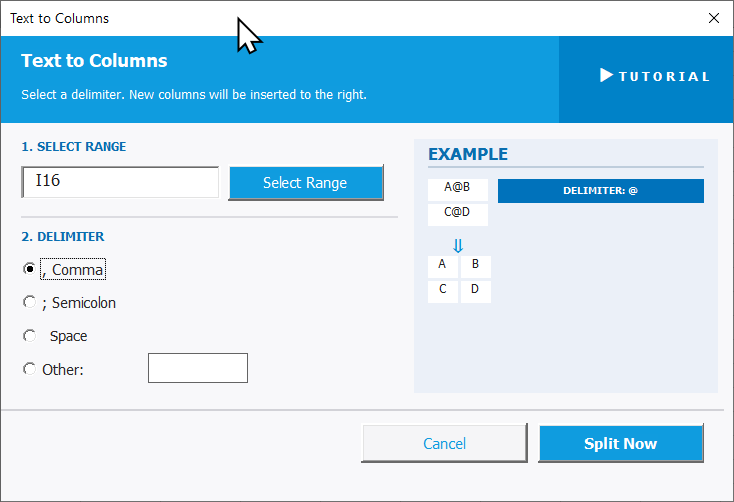
To open Text to Columns, go to the XLclick tab, find the Organize group, then click Split > Text to Columns.
The panel walks you through two steps:
1. SELECT RANGE — Click Select Range and highlight the cells containing the text you want to split. New columns will be inserted to the right of your selection.
2. DELIMITER — Choose the character that separates the values in your cells:
- , Comma — splits on every comma (e.g. John, Smith becomes two cells).
- ; Semicolon — splits on every semicolon, common in European CSV exports.
- Space — splits on every space character.
- Other — enter any custom character in the input field to use as the delimiter.
An EXAMPLE panel on the right shows a live preview of how the split will look before you run it.
Click Split Now to apply, or Cancel to exit without changes.
Real-World Scenarios: Top Use Cases for Excel Text to Columns
A Marketing Manager Splitting a Full Name Column Into First and Last Name
A marketing manager received a contact list where first and last names were combined in a single Excel column — John Smith, Maria Garcia. Her email platform required two separate fields. Splitting 1,500 names manually was not an option, and Excel's built-in text functions required formula knowledge she didn't have.
Text to Columns with Space as the delimiter split every name into two columns in one click. The file was import-ready for the email platform immediately.
A Freelance Data Analyst Splitting European CSV Exports Into Usable Columns
A freelance data analyst received sales data exported from a European accounting system. Instead of commas, the file used semicolons as separators, and everything landed in a single column. Excel's native import hadn't handled it correctly, leaving the data unusable.
Text to Columns with Semicolon as the delimiter restructured the entire dataset into proper columns instantly. The analyst had clean, analyzable data without having to re-import or reformat anything manually.
A Small Business Owner Splitting Product Tags Into Individual Columns
A small business owner exported her product catalog from an e-commerce platform. The tags column contained values like clothing,women,sale all in one cell. For reporting purposes, she needed each tag in its own column to filter and count by category.
Text to Columns with Comma as the delimiter split the tags from every product row into separate columns in seconds. The structured data made filtering and pivot analysis straightforward.
An HR Manager Separating Combined Department and Location Codes
An HR manager had a staff code column formatted as HR-London, FIN-Paris, OPS-Berlin — department and location combined with a hyphen. She needed them in separate columns for headcount reporting by department and by region, but there was no formula she felt confident writing across 400 rows.
Text to Columns with Other set to the hyphen character split every code cleanly into department and location columns. The pivot reports were built from the clean data the same afternoon.
A Content Team Splitting a Keyword List With Pipe-Separated Variants
A content team had a keyword research spreadsheet where multiple keyword variants had been combined in one cell using a pipe character — buy shoes online | affordable shoes | best shoe deals. Each variant needed its own row or column for content planning purposes.
Text to Columns with Other set to the pipe character split every cell into individual keyword columns in one pass. The structured list was ready for content mapping immediately.

Excel has always been my laboratory. After years of navigating data-heavy workflows, I created XLclick: the definitive add-in that simplifies complex analysis into a single click. It’s built for pros who want to spend less time on spreadsheets and more time on strategy.