Split Cell Contents into Multiple Rows in Excel
One Excel cell holding multiple values that each need their own row? Split to Rows is the tool everyone wishes Excel had built in — it just works, in one click.

Essential Settings for Split to Rows
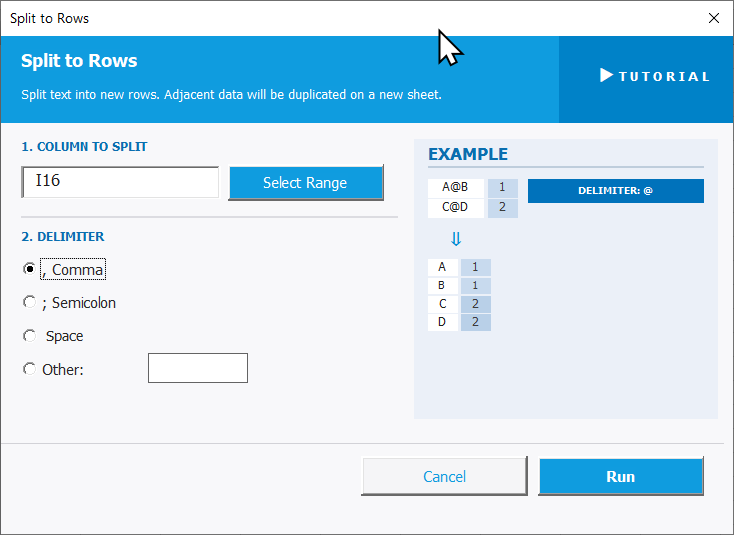
To open Split to Rows, go to the XLclick tab, find the Organize group, then click Split > Split to Rows.
The panel walks you through two steps:
1. COLUMN TO SPLIT — Click Select Range and highlight the column containing the delimited values. Adjacent data in the same row will be duplicated for each new row created.
2. DELIMITER — Choose the character that separates the values inside each cell:
- , Comma — splits on every comma.
- ; Semicolon — splits on every semicolon.
- Space — splits on every space.
- Other — enter any custom character in the input field.
An EXAMPLE panel on the right shows exactly how adjacent data will be duplicated alongside each split value.
The output is placed on a new sheet, keeping your original data untouched. Click Run to apply, or Cancel to exit.
Real-World Scenarios: Top Use Cases for Excel Split to Rows
An E-Commerce Manager Expanding Product Variants Into Individual Rows
An e-commerce manager had a product catalog where each row listed a product with all its size variants in one cell — S,M,L,XL. Her inventory system required a separate row for each size. Creating those rows manually for 300 products would have taken an entire day.
Split to Rows with Comma as the delimiter exploded every product into individual variant rows, duplicating the product name and price alongside each size automatically. The full inventory list was output to a new sheet in seconds.
A Freelance CRM Consultant Expanding Multi-Tag Contact Records
A freelance CRM consultant was migrating a client's contact list to a new platform. Each contact had multiple tags in one cell — cold lead;hot lead;newsletter. The new system required each tag on its own row with the contact duplicated. Doing this manually for 800 contacts was not feasible.
Split to Rows with Semicolon as the delimiter expanded every contact into as many rows as needed, duplicating the contact data alongside each tag. The migration file was ready for import the same day.
A Small Business Owner Separating Order Line Items Packed Into Single Cells
A small business owner received order exports from her web store where multiple purchased items were listed in one cell per order — separated by commas. Her fulfillment partner needed each item on its own row with the order number repeated. Reformatting 200 orders manually was out of the question.
Split to Rows with Comma split every order into individual line item rows, with the order ID and customer name duplicated on each. The fulfillment file was generated in one click.
A Marketing Analyst Expanding a Campaign List With Multiple Target Channels
A marketing analyst had a campaign planning spreadsheet where each campaign row listed multiple distribution channels in one cell — Email, Social, Display. For reporting purposes, each channel needed its own row so she could analyze performance by channel independently.
Split to Rows with Comma expanded the campaign list, duplicating campaign details alongside each individual channel. The restructured data was ready for pivot analysis on the new sheet immediately.
An HR Team Expanding a Training Records Sheet With Multiple Courses per Employee
An HR team had a training log where each employee row listed multiple completed courses in one cell — Health and Safety, Data Protection, Excel Basics. For compliance reporting, every course needed to appear as its own row with the employee details repeated.
Split to Rows with Comma expanded every employee record into individual course rows automatically, with names and IDs duplicated across each. The compliance report was built from the new sheet the same afternoon.

Excel has always been my laboratory. After years of navigating data-heavy workflows, I created XLclick: the definitive add-in that simplifies complex analysis into a single click. It’s built for pros who want to spend less time on spreadsheets and more time on strategy.