Bulk Remove Text and Spaces in Excel
Every cell in your Excel list has the same unwanted prefix, suffix, or hidden spaces? Remove Text and Spaces strips them all in bulk — no formulas, no manual editing.

Essential Settings for Remove Text and Spaces
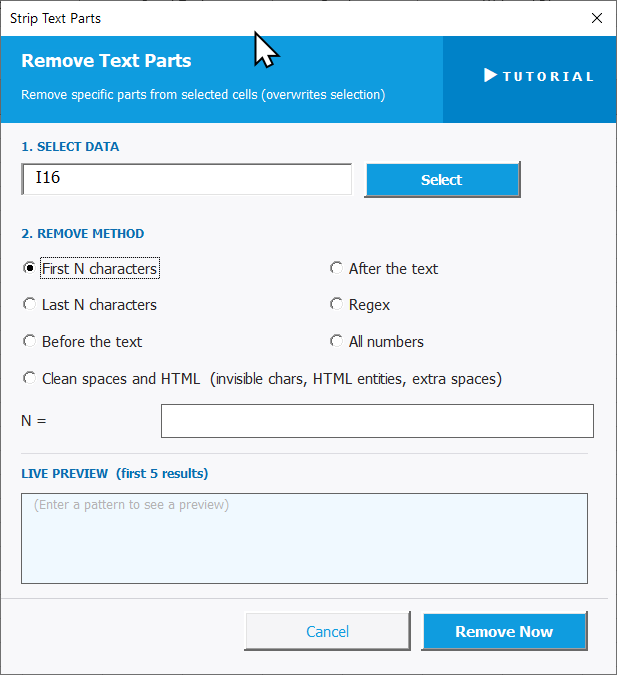
To open Remove Text and Spaces, go to the XLclick tab, find the Fix and Clean group, then click Refine > Remove Text and Spaces. The tool overwrites your selection directly.
The panel walks you through two steps:
1. SELECT DATA — Click Select and highlight the cells you want to clean.
2. REMOVE METHOD — Choose what to strip from each cell:
- First N characters — removes the first N characters from each cell. Set the value in the N = field.
- Last N characters — removes the last N characters from each cell.
- Before the text — removes everything that appears before a specific string.
- After the text — removes everything that appears after a specific string.
- Regex — removes text matching a custom regular expression pattern.
- All numbers — strips all numeric characters from every cell.
- Clean spaces and HTML — removes invisible characters, HTML entities, and extra spaces that sneak in when copying from websites.
The LIVE PREVIEW shows results in real time. Click Remove Now to apply, or Cancel to exit.
Real-World Scenarios: Top Use Cases for Excel Remove Text and Spaces
A Data Entry Manager Removing ID Prefixes From an Entire Product Code Column
A data entry manager received a product export where every code had a prefix like ID: in front — ID: 10042, ID: 10043. The internal system only accepted the raw numbers, so every code needed the prefix removed before import. With 2,000 rows, doing it manually was out of the question.
Remove Text and Spaces with Before the text set to the colon-space removed the prefix from every cell at once. The cleaned codes were ready to import in under a minute.
A Freelance VA Cleaning Copy-Pasted Data Full of Invisible Characters
A freelance virtual assistant copied customer data from a web portal into Excel. The cells looked fine on screen, but filters and lookups weren't working — invisible characters and HTML entities were hiding inside the text, breaking everything.
Remove Text and Spaces with Clean spaces and HTML stripped all invisible characters from the selection in one click. Filters and lookups started working correctly immediately after.
A Small Business Owner Stripping Units From a Price List
A small business owner had a pricing spreadsheet where every value ended with EUR — like 29.99 EUR. Before importing into her invoicing software, the currency label had to be removed from every cell. With 500 products, manually editing each one would have taken hours.
Remove Text and Spaces with After the text set to the space before EUR removed the suffix from every price cell in one pass. The clean numbers were import-ready instantly.
A Marketing Analyst Removing Trailing Reference Codes From Campaign Names
A marketing analyst had a campaign name column where every entry ended with an internal tracking code — like Summer Sale 2024 [REF-447]. For the client report, the reference codes had to be stripped, leaving only the readable campaign names.
Remove Text and Spaces with Before the text set to the bracket character removed everything from the bracket onward. All 300 campaign names were cleaned in seconds.
An E-Commerce Team Removing Leading Zeros and Formatting From Order IDs
An e-commerce team had order IDs imported with leading zeros and spaces — like 00123 or 456 . Their fulfillment system rejected anything that wasn't a plain integer, and manual cleanup across thousands of orders wasn't feasible.
Remove Text and Spaces with Clean spaces and HTML removed extra spaces, and First N characters stripped the leading zeros. The order IDs were clean and system-ready in seconds.

Excel has always been my laboratory. After years of navigating data-heavy workflows, I created XLclick: the definitive add-in that simplifies complex analysis into a single click. It’s built for pros who want to spend less time on spreadsheets and more time on strategy.