Delete All Empty Rows & Columns Fast in Excel
Blank rows and ghost columns cluttering your Excel sheet after a data cleanup? Delete Empty Rows/Cols removes them all in one click and fixes the endless scroll too.

Essential Settings for Delete Empty Rows/Cols
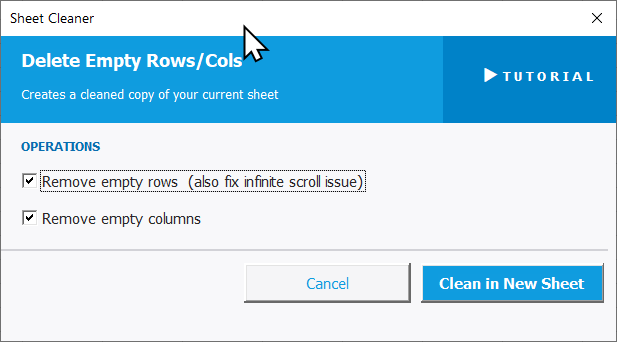
To open Delete Empty Rows/Cols, go to the XLclick tab, find the Fix and Clean group, then click Cleaner > Delete Empty Rows/Cols.
The panel is straightforward — no data selection needed. Under the OPERATIONS section, check the actions you want to apply:
- Remove empty rows — deletes all fully blank rows from the sheet. Also fixes the infinite scroll issue, where Excel's used range extends far beyond your actual data.
- Reomve empty columns — deletes all fully blank columns from the sheet.
Both options are checked by default so you can clean rows and columns in one pass. The result is placed in a new sheet, keeping your original intact.
Click Clean in New Sheet to run, or Cancel to exit without changes.
Real-World Scenarios: Top Use Cases for Excel Delete Empty Rows/Cols
A Data Analyst Cleaning Up a Sheet After Deleting Thousands of Rows
A data analyst filtered and deleted outdated records from a large dataset, leaving hundreds of scattered blank rows throughout the sheet. Scrolling through the file was a nightmare, and pivot tables were throwing errors because of the gaps in the data.
Delete Empty Rows/Cols removed every blank row in one click and placed a clean copy in a new sheet. The pivot tables worked perfectly, and the file went from chaotic to organized in seconds.
A Freelance Bookkeeper With Imported Files That Scroll Forever
A freelance bookkeeper regularly imported bank statement exports into Excel. Every file arrived with hundreds of empty rows at the bottom, making the spreadsheet scroll far beyond the actual data. Ctrl+End jumped to row 5000 even when real data ended at row 80.
Delete Empty Rows/Cols with Remove empty rows fixed the infinite scroll issue instantly, resetting the used range to match the actual data. The file became light and easy to navigate.
A Marketing Manager Cleaning a Contact Export With Blank Separators
A marketing manager exported a contact list from a CRM that inserted a blank row between every contact group. The 3,000-row file had 500 blank separators scattered throughout, breaking every filter, sort, and formula she tried to apply.
Running Delete Empty Rows/Cols removed all blank rows in one pass. The clean output in a new sheet had continuous data that filtered and sorted without any issues.
A Small Business Owner Removing Empty Columns From a Merged Report
A small business owner merged several monthly reports into one Excel file. The merge left empty columns scattered between data sections — making the file wide and hard to read, and breaking any chart that tried to reference a continuous range.
Delete Empty Rows/Cols with Remove empty columns cleaned up the layout instantly. The consolidated file was compact, readable, and ready to share with her accountant.
An Operations Team Preparing a Template After Clearing Old Data
An operations team cleared out all data from last quarter's template to reuse it for the new quarter. After deleting the content, dozens of blank rows and leftover empty columns remained, making the template feel broken and unprofessional to share with the team.
Delete Empty Rows/Cols wiped all empty rows and columns in one click. The clean template copy was ready to distribute in seconds.

Excel has always been my laboratory. After years of navigating data-heavy workflows, I created XLclick: the definitive add-in that simplifies complex analysis into a single click. It’s built for pros who want to spend less time on spreadsheets and more time on strategy.