Deduplicate: Find & Remove Duplicates in Excel
Duplicate entries ruining your Excel list? Deduplicate finds and removes them in one click — or lets you highlight and review them first before taking any action.

Essential Settings for Deduplicate
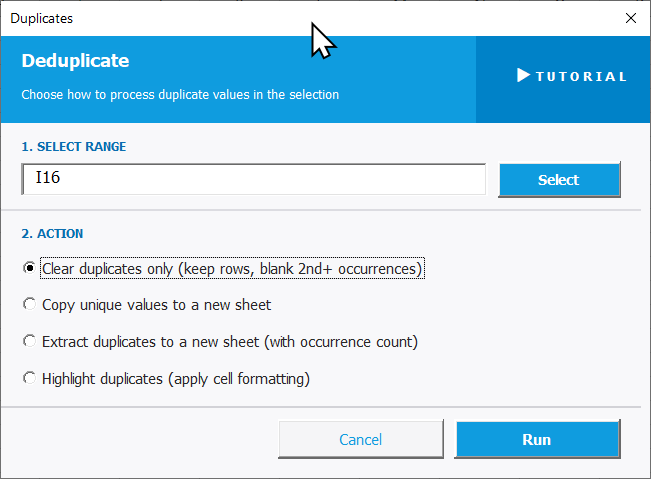
To open Deduplicate, go to the XLclick tab, find the Fix and Clean group, then click Deduplicate.
The panel walks you through two steps:
1. SELECT RANGE — Click Select and highlight the column or list you want to deduplicate.
2. ACTION — Choose how to handle duplicates:
- Clear duplicates only — keeps all rows but blanks out the duplicate values, leaving only the first occurrence in each cell.
- Copy unique values to a new sheet — extracts only the distinct values and places them on a fresh tab.
- Extract duplicates to a new sheet — pulls the duplicate entries to a new sheet and shows how many times each one appeared.
- Highlight duplicates — applies cell formatting to mark duplicates visually, so you can review them before deciding what to do.
Click Run to apply the selected action, or Cancel to exit without changes.
Real-World Scenarios: Top Use Cases for Excel Deduplicate
A Marketing Manager Removing Duplicate Emails Before a Newsletter Send
A marketing manager combined subscriber lists from three different sources into one Excel file before a newsletter campaign. The merged list had hundreds of duplicate email addresses — sending to duplicates would inflate costs, trigger spam flags, and look unprofessional to recipients who got the same email twice.
Deduplicate with Copy unique values to a new sheet extracted a clean, duplicate-free list in one click. The campaign went out to the right audience only.
A Freelance Researcher Cleaning a List of Interview Contacts
A freelance market researcher compiled a contact list from multiple survey rounds. The same people had signed up more than once, so the list had duplicate names and emails scattered throughout. Reaching out to the same person twice would have been embarrassing and wasted budget.
Deduplicate with Extract duplicates to a new sheet let her first see who appeared more than once and how many times. She then ran Copy unique values to a new sheet for the final clean list.
A Small Business Owner Finding Repeated Orders in a Sales Log
A small business owner maintained a manual sales log in Excel. She suspected some orders had been entered twice after a system glitch, but wasn't sure which ones. Going through 800 rows row by row looking for duplicates would have taken hours.
Deduplicate with Highlight duplicates flagged every repeated order ID instantly. She reviewed the highlighted entries, confirmed the duplicates, and removed them — keeping the sales data accurate.
A Data Analyst Deduplicating a Product SKU List Before a Catalog Update
A data analyst was tasked with updating a product catalog in Excel. The master SKU list had grown over time and contained duplicate codes — some from legacy products, some from data entry errors. Uploading duplicates to the catalog system would have caused inventory conflicts.
Deduplicate with Copy unique values to a new sheet produced a clean SKU list in seconds. The catalog update ran without any conflicts or rejected records.
An Agency Cleaning a Prospect List Merged From Multiple Sales Reps
A marketing agency merged prospect lists from five sales reps into one master Excel file for a coordinated outreach campaign. Each rep had submitted contacts independently, so many companies and contacts appeared multiple times under slightly different formats.
Deduplicate with Extract duplicates to a new sheet revealed every repeated entry with occurrence counts. The team reviewed and resolved them, then used Copy unique values to finalize the clean prospect list for the campaign.

Excel has always been my laboratory. After years of navigating data-heavy workflows, I created XLclick: the definitive add-in that simplifies complex analysis into a single click. It’s built for pros who want to spend less time on spreadsheets and more time on strategy.