Data Fixer: Fix Common Excel Data Errors in Bulk
Numbers that won't add up, formulas you need to freeze, or leftover formatting from an Excel import? Data Fixer resolves the most common spreadsheet problems in one pass.

Essential Settings for Data Fixer
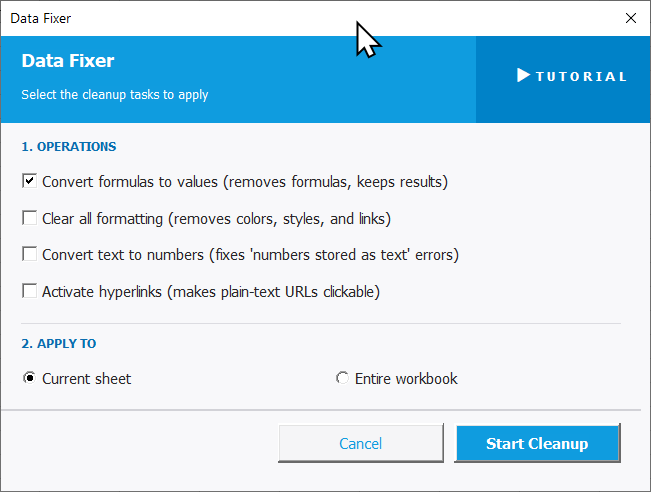
To open Data Fixer, go to the XLclick tab, find the Fix and Clean group, then click Cleaner > Data Fixer.
The panel lets you choose exactly which cleanup operations to apply:
1. OPERATIONS — check the tasks you want to run:
- Convert formulas to values — replaces all formulas with their current calculated results, keeping the numbers but removing the formulas.
- Clear all formatting — removes colors, styles, and embedded links from all cells.
- Convert text to numbers — fixes cells where numbers are stored as text, so they calculate and sort correctly.
- Activate hyperlinks — converts plain-text URLs into clickable hyperlinks.
2. APPLY TO — choose the scope:
- Current sheet — applies changes only to the active sheet.
- Entire workbook — applies changes to every sheet in the file.
Click Start Cleanup to run, or Cancel to exit.
Real-World Scenarios: Top Use Cases for Excel Data Fixer
A Financial Analyst Freezing a Model Before Sending It to a Client
A financial analyst built a complex Excel model with hundreds of interconnected formulas. Before sending it to a client who should only see results — not the underlying logic — he needed to convert every formula to a static value. Doing it sheet by sheet with Paste Special was tedious and error-prone.
Data Fixer with Convert formulas to values applied to the entire workbook froze every formula in one pass. The model was clean, fast, and safe to share.
A Freelance Accountant Fixing Numbers That Won't Calculate After a CSV Import
A freelance accountant imported a CSV file into Excel and found that none of the amount columns would sum correctly. SUM returned zero, sorting put 100 before 20, and formulas failed. The classic numbers-stored-as-text problem — and there were 1,500 rows of it.
Data Fixer with Convert text to numbers fixed every cell in one click. All calculations started working correctly immediately after, with no manual intervention needed.
A Marketing Manager Cleaning Up Imported Data With Leftover Formatting
A marketing manager regularly copied campaign performance data from a web dashboard into Excel. Each import brought along background colors, text styles, and hidden formatting that made the sheet look inconsistent and hard to read alongside the rest of the report.
Data Fixer with Clear all formatting stripped all the imported styles in one pass on the current sheet. The data looked uniform and professional, ready to format on her own terms.
A Small Business Owner Making a URL List Clickable for a Partner
A small business owner had a list of 200 supplier website URLs in Excel that were plain text — not clickable hyperlinks. She needed to share the list with a partner who expected to click directly through to each site, but converting them one by one was going to take forever.
Data Fixer with Activate hyperlinks converted every plain URL into a working clickable link in one click. The file was ready to share in seconds.
A Sales Team Preparing a CRM Export for a New Platform Migration
A sales team exported their entire CRM into Excel to migrate to a new platform. The export was a mess — formulas everywhere, inconsistent number formats stored as text, and leftover color coding from old pipeline stages that would confuse the import.
Data Fixer with all four operations enabled on the entire workbook resolved every issue in one go. The clean export was ready for the new platform import without any manual fixes.

Excel has always been my laboratory. After years of navigating data-heavy workflows, I created XLclick: the definitive add-in that simplifies complex analysis into a single click. It’s built for pros who want to spend less time on spreadsheets and more time on strategy.