Clear Comments: Remove All Excel Comments Instantly
About to send an Excel file to a client but it's full of internal notes and draft comments? Clear Comments removes every sticky note from every sheet in one click.

Essential Settings for Clear Comments
To open Clear Comments, go to the XLclick tab, find the Fix and Clean group, then click Cleaner > Clear Comments.
The tool works instantly across your entire workbook — no settings to configure and no data selection needed.
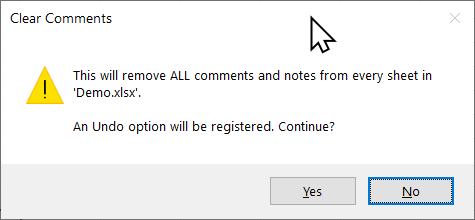
When you click it, a confirmation dialog appears: This will remove ALL comments and notes from every sheet in the file. An Undo option will be registered. Continue?
Click Yes to proceed. Every comment and sticky note across all sheets is removed in one pass. Click No to cancel without making any changes.
Because an undo option is registered, you can reverse the action immediately if needed — but once you close the file, the comments are permanently gone.
Real-World Scenarios: Top Use Cases for Excel Clear Comments
An Account Manager Sending a Budget File to a Client Without Internal Notes
An account manager built a budget proposal in Excel, adding comments throughout during the internal review — things like needs approval and check this number. When the file was ready to send to the client, she realized the comments were still there, including some that were not meant to be seen.
Clear Comments removed every internal note across all sheets in one click. She sent the file seconds later, confident nothing inappropriate was visible.
A Freelance Consultant Cleaning Up a Deliverable Before Handoff
A freelance financial consultant annotated a client's Excel model with dozens of working comments during the analysis phase. At delivery time, the file had 40+ sticky notes scattered across three sheets — informal, incomplete, and not suitable for a professional deliverable.
Clear Comments wiped all notes from every sheet at once. The model looked clean and professional, with no trace of the working process left behind.
A Small Business Owner Reusing a Template That Had Old Revision Notes
A small business owner reused a previous year's invoice template that still had review comments from her accountant — things like update this formula and confirm VAT rate. Sending a new invoice with those old notes still visible would have looked careless.
Clear Comments cleared the entire file in one click before she filled in the new invoice details. The template was clean and ready to use in seconds.
An HR Team Preparing an Appraisal Form to Distribute to Employees
An HR team built an appraisal form in Excel and added internal planning comments during the design phase — instructions to themselves, draft questions, and reminders. Before distributing the form to 80 employees, every internal comment had to be removed from every sheet.
One click of Clear Comments stripped all notes from the entire workbook. The form was distributed the same day without any manual cleanup across individual sheets.
A Marketing Agency Archiving Campaign Reports With Sensitive Internal Annotations
A marketing agency archived client campaign reports that contained internal performance annotations — candid notes about strategy decisions and client issues. When a new team member accidentally shared an archived file with the client, the comments caused an awkward situation.
After that incident, the agency made Clear Comments a standard step before any file left the building. One click before export ensured no internal note was ever shared unintentionally again.

Excel has always been my laboratory. After years of navigating data-heavy workflows, I created XLclick: the definitive add-in that simplifies complex analysis into a single click. It’s built for pros who want to spend less time on spreadsheets and more time on strategy.