Remove Text from Numbers in Excel Fast
Mixed text and numbers in the same Excel cell? Extract Numbers strips away all the surrounding text and pulls out only the numeric values — clean and ready to calculate.

Essential Settings for Extract Numbers
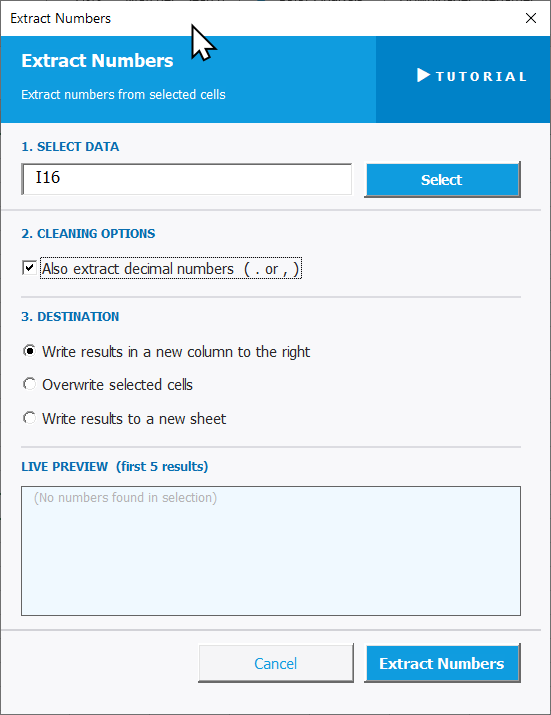
To open Extract Numbers, go to the XLclick tab, find the Fix and Clean group, then click Extract > Numbers.
The panel walks you through three steps:
1. SELECT DATA — Click Select and highlight the cells containing your mixed text-and-number data.
2. CLEANING OPTIONS — Enable Also extract decimal numbers (. or ,) to retain values like 29.99 or 1,500 as proper decimals. Leave unchecked to extract integers only.
3. DESTINATION — Choose where to send the extracted numbers:
- Write results in a new column to the right — keeps your original data intact.
- Overwrite selected cells — replaces the source range with the clean numbers.
- Write results to a new sheet — outputs results on a fresh tab.
The LIVE PREVIEW shows the first 5 results before you commit. Click Extract Numbers to run, or Cancel to exit.
Real-World Scenarios: Top Use Cases for Excel Extract Numbers
An E-Commerce Manager Cleaning Scraped Product Prices That Won't Calculate
An e-commerce manager copy-pasted a competitor's product list from the web into Excel. Every price cell read something like Price: $29.99 — mixing label and value in one cell. Excel treated them all as text, so totals, averages, and margin calculations returned errors.
Extract Numbers with Also extract decimal numbers enabled stripped the labels instantly. Clean numeric values landed in a new column, and the calculations started working immediately.
A Freelance Bookkeeper With Invoice Exports Full of Text-Wrapped Amounts
A freelance bookkeeper received monthly invoice exports where every amount came through as Total: 1500 or Amount due: 320 — text strings that couldn't be summed in Excel. Manually extracting each number from hundreds of rows would have taken hours every month.
She selected the full column and ran Extract Numbers with the decimal option on. Clean values went to a new column to the right, ready to sum and report on immediately.
A Marketing Analyst Cleaning Survey Scores Mixed With Text Labels
A marketing analyst downloaded survey data where scores were written as Score: 8 or Rating 4/10. She needed to average results across hundreds of responses, but Excel couldn't calculate anything — the cells were plain text with numbers buried inside them.
Running Extract Numbers pulled the numeric scores out in seconds. Using Write results to a new sheet gave her a clean dataset to pivot and chart without touching the original export.
A Small Business Owner With Inventory Quantities That Wouldn't Sum
A small business owner received a supplier file where every quantity was written as 150 units or Qty: 48. The SUM formula returned zero because Excel treated all values as text. Retyping 300 rows manually was not a realistic option.
Extract Numbers pulled all quantities into a new column to the right in seconds. Stock totals and reorder calculations worked perfectly from that point on.
An Agency Analyst With Ad Spend Figures Locked Inside Text Strings
A digital agency analyst pulled Facebook Ads export data into Excel. The budget column showed values like Spent: $1,240.50 — completely unusable for calculations across 12 months of campaign data and multiple clients.
With Extract Numbers and Also extract decimal numbers enabled, every spend figure was extracted accurately to a new sheet, which became the clean source for all monthly client performance reports.

Excel has always been my laboratory. After years of navigating data-heavy workflows, I created XLclick: the definitive add-in that simplifies complex analysis into a single click. It’s built for pros who want to spend less time on spreadsheets and more time on strategy.