Combine Columns: Merge Multiple Excel Columns into One
Merging first name, last name, city, and country into one Excel column? Combine Columns joins multiple columns into one with any separator you choose — no CONCATENATE formula needed.

Essential Settings for Combine Columns
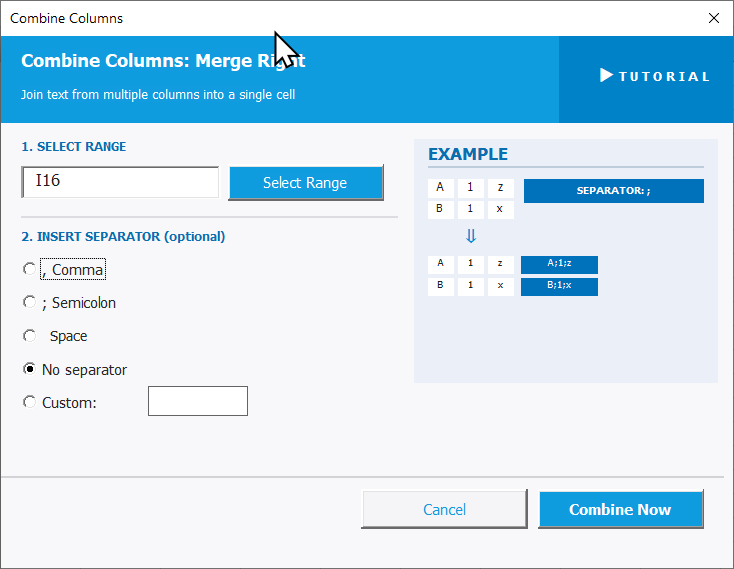
To open Combine Columns, go to the XLclick tab, find the Organize group, then click Combine > Combine Columns.
The panel walks you through two steps:
1. SELECT RANGE — Click Select Range and highlight all the columns you want to merge. The tool will join them left to right, row by row.
2. INSERT SEPARATOR (optional) — Choose what to place between the merged values:
- , Comma — joins with a comma between each value.
- ; Semicolon — joins with a semicolon.
- Space — joins with a single space (ideal for names).
- No separator — merges values directly with nothing between them.
- Custom — enter any character or string in the input field, such as a dash or pipe.
An EXAMPLE panel on the right shows a live preview of how the combination will look.
The result is written into the first selected column, merging the others into it. Click Combine Now to apply, or Cancel to exit.
Real-World Scenarios: Top Use Cases for Excel Combine Columns
A Marketing Manager Building a Full Address Field for an Email Platform Import
A marketing manager had a contact list in Excel with Street, City, and Country in three separate columns. Her email platform required a single combined address field for import. Writing a CONCATENATE formula across 2,000 rows — and getting the spacing right — was more trouble than she wanted.
Combine Columns with Custom separator set to a comma-space merged all three columns into one clean address field in seconds. The import worked perfectly on the first try.
A Freelance VA Creating Full Names From Separate First and Last Name Columns
A freelance virtual assistant was asked to prepare a mailing list where first and last names were in separate Excel columns. The client's mail merge tool required a single full name field. Manually typing or copying 500 names together was not realistic.
Combine Columns with Space as the separator merged both name columns into a clean full name column in one click. The mail merge ran without any issues.
A Small Business Owner Building Product SKU Codes From Multiple Attributes
A small business owner structured her product catalog with category, color, and size in separate Excel columns — but her inventory system required a single SKU code formatted as CAT-COLOR-SIZE. Creating these codes manually for 400 products by typing each one was not feasible.
Combine Columns with Custom separator set to a hyphen merged all three attribute columns into a properly formatted SKU code for every product at once. The catalog was ready to import immediately.
An E-Commerce Team Combining Product Name and Variant Into a Single Listing Title
An e-commerce team had product names and variant descriptors in separate Excel columns — Blue Sneaker in one, Size 42 in another. Their marketplace platform required a single listing title like Blue Sneaker - Size 42 for each entry. With 600 products to process, formula-based solutions were slow.
Combine Columns with Custom separator set to a space-dash-space merged both columns into a complete listing title for every row in seconds. The upload file was ready the same morning.
A Researcher Merging Author First Names and Surnames for a Citation List
A researcher compiled a bibliography in Excel with author first names and surnames in separate columns. Before exporting the citation list, she needed a single Author Name column with values formatted consistently. Getting the spacing and punctuation right with a formula across 200 entries was error-prone.
Combine Columns with Custom separator set to a comma-space merged surnames and first names into the correct citation format in one pass. The clean list was copied straight into her document.

Excel has always been my laboratory. After years of navigating data-heavy workflows, I created XLclick: the definitive add-in that simplifies complex analysis into a single click. It’s built for pros who want to spend less time on spreadsheets and more time on strategy.