Extract Specific Text Patterns in Excel
Need to pull a specific piece of text from hundreds of Excel cells — like a product code, an invoice number, or text between brackets? Pattern Matcher does it in clicks.

Essential Settings for Pattern Matcher
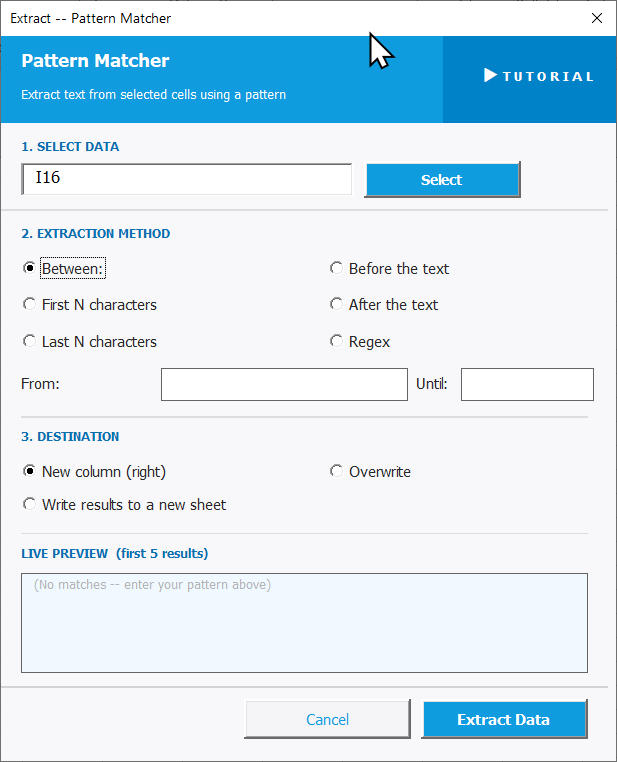
To open Pattern Matcher, go to the XLclick tab, find the Fix and Clean group, then click Extract > Pattern Matcher.
The panel walks you through three steps:
1. SELECT DATA — Click Select and highlight the cells to extract from.
2. EXTRACTION METHOD — Choose the pattern type that matches your data:
- Between — extract text between two characters or strings. Set the From and Until values in the fields below.
- First N characters — extract the first N characters from each cell.
- Last N characters — extract the last N characters from each cell.
- Before the text — extract everything that comes before a specific string.
- After the text — extract everything after a specific string.
- Regex — extract using a custom regular expression pattern.
3. DESTINATION — Send results to a new column (right), overwrite the selection, or output to a new sheet.
The LIVE PREVIEW confirms matches in real time. Click Extract Data to run, or Cancel to exit.
Real-World Scenarios: Top Use Cases for Excel Pattern Matcher
A Warehouse Manager Extracting Product Codes From Mixed Description Cells
A warehouse manager received an inventory export where each cell contained a product description like Blue Widget [SKU-1042] — size M. He needed only the SKU codes for a reorder report, but they were buried at different positions inside 800 rows of text.
Using Pattern Matcher with Between set to extract text between [ and ], he pulled every SKU in one click. The clean code list went to a new column, ready to paste into the ordering system.
A Freelance Developer Parsing Invoice Numbers From Email Subject Lines
A freelance developer had a spreadsheet of client email subjects pasted from his inbox — things like Invoice #2024-087 — Project Alpha. He needed the invoice numbers isolated to reconcile payments, but they appeared at different positions in each subject line.
Pattern Matcher with After the text set to Invoice # extracted every number instantly. The results went to a new column to the right, and the reconciliation was done before lunch.
A Marketing Team Extracting UTM Campaign Names From URLs
A marketing team had a column of full tracking URLs from their campaign reports. Each URL contained a utm_campaign= parameter with the campaign name — buried inside a long string. Manually copying the campaign name from 1,500 URLs was simply not feasible.
Using Pattern Matcher with After the text set to utm_campaign=, the tool extracted every campaign name in seconds. The clean names were output to a new sheet for pivot analysis.
A Small Business Owner Pulling City Names From Address Strings
A small business owner had customer addresses in a single column formatted as Street, City, Country. She needed to split out just the city for a regional delivery report, but Excel's built-in text tools required manual counting of character positions for every row.
Pattern Matcher with Between set to comma-comma extracted the city portion from every address cleanly. Results were written to a new column to the right with no manual work.
An HR Manager Extracting Employee ID Numbers From Staff Reference Codes
An HR manager had a staff reference column formatted as DEPT-HR-00142 where the last 5 digits were the unique employee ID. She needed to extract just those digits from 400 rows to link records with a payroll system — without a single formula.
Pattern Matcher with Last N characters set to 5 extracted every employee ID instantly. The results were output to a new column, ready to use as a lookup key in the payroll file.

Excel has always been my laboratory. After years of navigating data-heavy workflows, I created XLclick: the definitive add-in that simplifies complex analysis into a single click. It’s built for pros who want to spend less time on spreadsheets and more time on strategy.