Extract Links & Domains from Excel Text
URLs buried inside Excel cells, mixed with notes and descriptions? Extract Links pulls every web address into a clean separate column — full URL or domain only, your choice.

Essential Settings for Extract Links
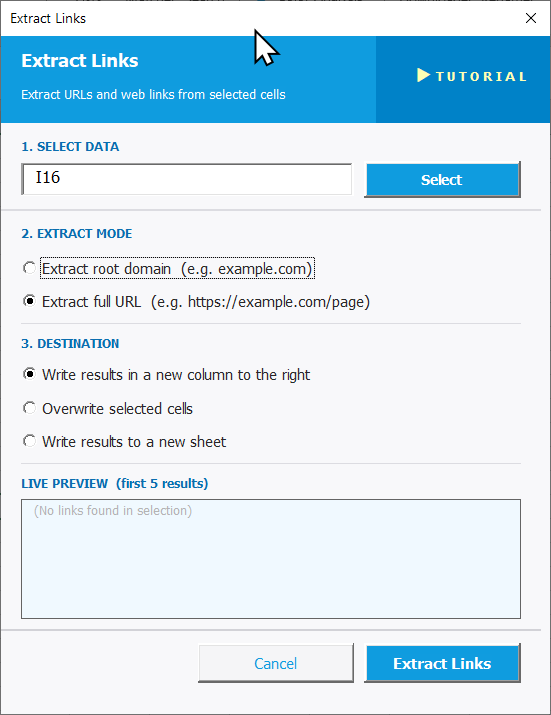
To open Extract Links, go to the XLclick tab, find the Fix and Clean group, then click Extract > Links.
The panel walks you through three steps:
1. SELECT DATA — Click Select and highlight the cells containing text with embedded URLs.
2. EXTRACT MODE — Choose what to pull out:
- Extract root domain — returns only the domain name (e.g. example.com), useful for grouping and analysis.
- Extract full URL — returns the complete web address including path and parameters (e.g. https://example.com/page).
3. DESTINATION — Choose where to output the extracted links:
- Write results in a new column to the right — preserves your original text.
- Overwrite selected cells — replaces content with extracted links.
- Write results to a new sheet — sends output to a fresh tab.
The LIVE PREVIEW shows the first 5 results. Click Extract Links to run, or Cancel to exit.
Real-World Scenarios: Top Use Cases for Excel Extract Links
A Content Marketer Building a Link Audit From Pages With Embedded URLs
A content marketer had a spreadsheet of 500 blog post notes, each cell containing descriptions with source URLs mixed in. She needed a clean list of all links referenced across the content — but extracting them one by one would have taken most of her day.
Extract Links with Extract full URL selected pulled every URL from the notes into a new column instantly. She had a complete link list ready for her SEO audit in under a minute.
A Freelance Analyst Grouping Traffic Sources by Domain
A freelance data analyst received a raw export of referral traffic where each row had a full URL in the source field. His client needed a pivot table grouped by domain — but you can't group by full URLs. Converting 2,000 URLs to root domains manually was not an option.
Using Extract Links with Extract root domain, he output a clean domain column to the right in seconds. The pivot table was built and delivered the same morning.
A Small Business Owner Organizing Supplier Links From Product Notes
A small business owner kept product sourcing notes in Excel — each cell contained a mix of supplier name, product details, and a website link. She needed all the supplier URLs in one organized column before sending the file to her procurement partner.
Extract Links pulled every URL from her notes cells in one click. Choosing Write results to a new sheet kept her original notes untouched and gave the partner a clean, separate link list.
A Marketing Agency Auditing Client Backlink Data From Exported Reports
A marketing agency exported backlink data from an SEO tool. The referring page column contained full URLs with long paths and query strings, but the client report only needed the referring domains. Manually trimming thousands of URLs was out of the question.
Running Extract Links with Extract root domain processed the entire column instantly. The cleaned domain list went to a new column and was ready for the client report within minutes.
A Researcher Extracting Source Links From a Literature Notes Spreadsheet
A researcher maintained a spreadsheet of notes and references where each row contained a paragraph of text with a source URL embedded inside. She needed all links extracted and organized before submitting a report — but the URLs were buried at different positions in each cell.
Extract Links found and extracted every URL regardless of its position in the text. Using Write results to a new sheet gave her a clean reference list without altering the original notes.

Excel has always been my laboratory. After years of navigating data-heavy workflows, I created XLclick: the definitive add-in that simplifies complex analysis into a single click. It’s built for pros who want to spend less time on spreadsheets and more time on strategy.