Format Case: Change Text Case in Excel Automatically
Inconsistent capitalization across your Excel list? Format Case converts hundreds of cells to the right case in one click — proper, uppercase, lowercase, or URL-friendly.

Essential Settings for Format Case
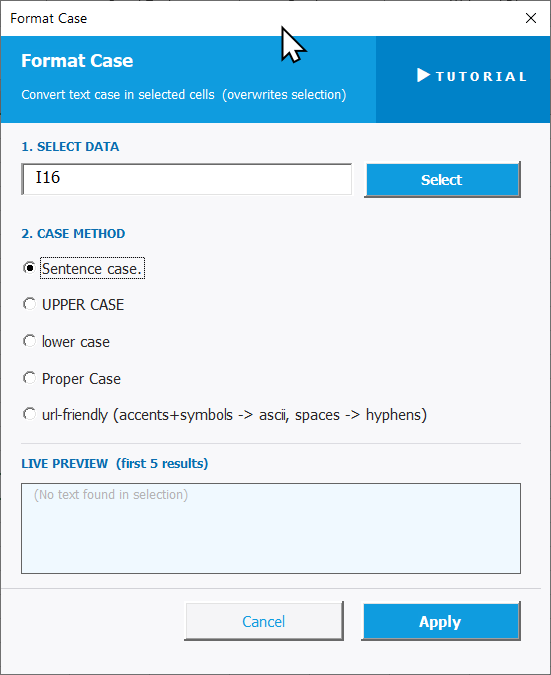
To open Format Case, go to the XLclick tab, find the Fix and Clean group, then click Refine > Format Case. The tool overwrites your selection directly.
The panel walks you through two steps:
1. SELECT DATA — Click Select and highlight the cells you want to reformat.
2. CASE METHOD — Choose the capitalization style to apply:
- Sentence case — capitalizes only the first letter of each cell, like a normal sentence.
- UPPER CASE — converts everything to capital letters.
- lower case — converts everything to lowercase.
- Proper Case — capitalizes the first letter of every word, ideal for names and titles.
- url-friendly — converts text to lowercase ASCII, replaces accented characters and spaces with hyphens (e.g. My Product Name becomes my-product-name). Perfect for slugs and file names.
The LIVE PREVIEW shows how your text will look before applying. Click Apply to run, or Cancel to exit.
Real-World Scenarios: Top Use Cases for Excel Format Case
A Marketing Manager Standardizing Product Names Before Uploading to a Shop
A marketing manager received a product list from a supplier where names were a mix of ALL CAPS, lowercase, and random capitalization — like BLUE WIDGET, red widget, and Green Widget. Uploading them to the online store like that would look unprofessional.
Format Case with Proper Case standardized the entire product name column in one click. Every name came out correctly formatted, ready for the upload without a single manual edit.
A Freelance Web Developer Generating URL Slugs From Page Titles
A freelance web developer received a list of page titles in Excel that needed to be converted into URL slugs for a client's CMS. Titles like Our Best Products and Café au Lait Guide had to become our-best-products and cafe-au-lait-guide — with accents removed and spaces replaced.
Format Case with url-friendly converted all titles at once. The result column was copy-pasted directly into the CMS, saving hours of manual slug-writing.
A Small Business Owner Fixing an Imported Customer List With Mixed Cases
A small business owner imported a customer database from an old system where names were stored entirely in uppercase — JOHN SMITH, MARIA GARCIA. Before sending a personalized email campaign, she needed the names to look natural, not like they were being shouted.
Format Case with Proper Case converted every name instantly. The column was ready to merge into her email platform with no manual corrections needed.
An E-Commerce Analyst Normalizing Category Labels for Pivot Table Grouping
An e-commerce analyst had a product category column where the same category appeared as electronics, Electronics, and ELECTRONICS depending on who had entered the data. Pivot tables were splitting them into separate groups, breaking all the sales summaries.
Format Case with lower case standardized all category values in one pass. The pivot tables immediately grouped everything correctly, and the reports were accurate for the first time.
A Copywriter Reformatting a Bulk List of Article Titles to Sentence Case
A copywriter had a spreadsheet of 300 article titles that had been entered in ALL CAPS by a client. Every title needed to be converted to sentence case before publishing — a change that would have required manually retyping or correcting every single cell.
Format Case with Sentence case converted all 300 titles in one click. The list was exported and handed back to the client in minutes.

Excel has always been my laboratory. After years of navigating data-heavy workflows, I created XLclick: the definitive add-in that simplifies complex analysis into a single click. It’s built for pros who want to spend less time on spreadsheets and more time on strategy.