Deep Refresh: Refresh ALL Excel Data in One Click
Your Excel workbook is only as good as its last update. Toggling between manual refreshes and "Calculate Now" is a recipe for stale data. XLclick’s Deep Refresh eliminates this risk by syncing formulas, pivots, and connections in one definitive click.

Essential Settings for Deep Refresh
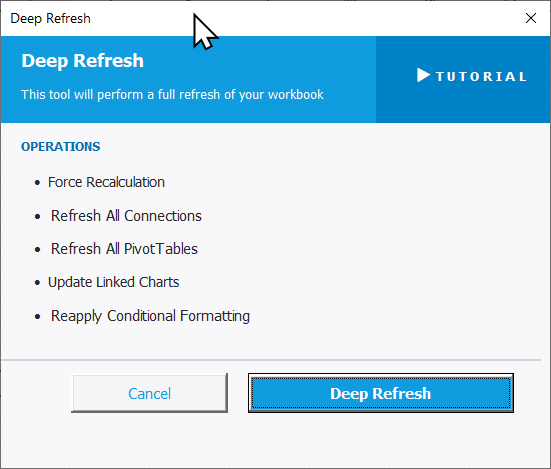
Managing a complex workbook with multiple dependencies usually requires a five-step manual process. With the XLclick add-in, this is condensed into a single, authoritative operation. Here is how to master the Deep Refresh tool:
Locate the Tool: Once the XLclick add-in is installed, navigate to the XLclick tab on your Excel Ribbon. Look for the Deep Refresh icon—it is your command center for data integrity.
Understand the Operations: When you click the button, a dedicated dialog box appears. Unlike standard Excel refreshes, Deep Refresh performs five critical actions simultaneously:
1. Force Recalculation: It pushes Excel to re-evaluate every formula, ensuring even volatile functions are current.
2. Refresh All Connections: It reaches out to external databases, CSVs, or web queries to pull the latest raw data.
3. Refresh All PivotTables: It rebuilds every PivotTable in the workbook to reflect the new data.
4. Update Linked Charts: It ensures visual representations immediately mirror the updated numbers.
5. Reapply Conditional Formatting: It fixes any formatting "lag" where colors or icons don’t update despite value changes.
Initiate the Refresh: Click the large blue Deep Refresh button at the bottom right. You will see Excel process the operations. If you are unsure about any specific step, you can click the Tutorial button in the top right of the window for an instant refresher.
Confirm Results: Once the process finishes, your workbook is "certified" fresh. No more second-guessing if a hidden pivot table is showing last week’s figures.
Real-World Scenarios: Top Use Cases for Excel Deep Refresh
Monthly Marketing Reports With One Chart Always Showing Last Month's Data
A digital marketing analyst manually refreshed her Excel dashboard every month after importing campaign data — clicking through each pivot table, triggering chart updates, and recalculating formulas one by one. Despite the effort, one chart always slipped through showing last month's numbers, caught by her manager every time in the review meeting.
With Deep Refresh, one click runs Force Recalculation, Refresh All Connections, Refresh All PivotTables, and Update Linked Charts in sequence. The entire Excel workbook is current in seconds, and she goes straight to finalizing the report.
A Freelance Consultant's Client Dashboard Connected to Live External Data
A freelance financial consultant built Excel dashboards for clients that pulled live data from external accounting systems. Every time he opened the file, he had to manually trigger data connections, then hunt down which charts and pivot tables hadn't refreshed. It was a five-minute ritual before every client call.
With Deep Refresh, one click as soon as the file is open takes care of everything. Refresh All Connections pulls the latest data, and Update Linked Charts redraws every visual automatically. The dashboard is fully current before the call starts.
A Small Business Owner With Conditional Formatting That Kept Breaking After Data Imports
A small e-commerce store owner tracked inventory and restock alerts in Excel using conditional formatting to flag low-stock items in red. After pasting in weekly supplier exports, the color highlights sometimes disappeared or applied to the wrong rows — causing her to miss a critical restock signal.
Running Deep Refresh after each import fixed it. Refresh All PivotTables rebuilt the summaries correctly, and Reapply Conditional Formatting ensured all low-stock color alerts were always accurate after every update.
An HR Manager Whose Monthly Headcount Report Took 20 Minutes to Prepare
An HR manager maintained a monthly headcount report in Excel connected to an HR platform export. After each data update, she refreshed pivot tables, updated two linked org charts, and recalculated headcount formulas one by one — a 20-minute clicking session every month before the report was ready to share with leadership.
With Deep Refresh, all operations — Force Recalculation, Refresh All PivotTables, and Update Linked Charts — run in one click. The report is ready in under a minute.
A Marketing Agency Where the Shared Excel Report Showed Inconsistent Numbers
A small marketing agency shared an Excel workbook with clients to report on campaign KPIs. When one team member updated the data source, charts and pivot tables on other sheets didn't always refresh — so presentations and the Excel file showed different numbers in client meetings.
Making Deep Refresh part of the team's update checklist eliminated the problem. Refresh All Connections, Refresh All PivotTables, and Update Linked Charts all run at once, keeping the entire workbook synchronized before sharing.

Excel has always been my laboratory. After years of navigating data-heavy workflows, I created XLclick: the definitive add-in that simplifies complex analysis into a single click. It’s built for pros who want to spend less time on spreadsheets and more time on strategy.