Extract & Clean Email Lists in Excel
Cleaning up a messy email list in Excel? Stop scanning rows manually. Extract Emails pulls every valid address from your data in one click and auto-corrects common typos for you.

Essential Settings for Extract Emails
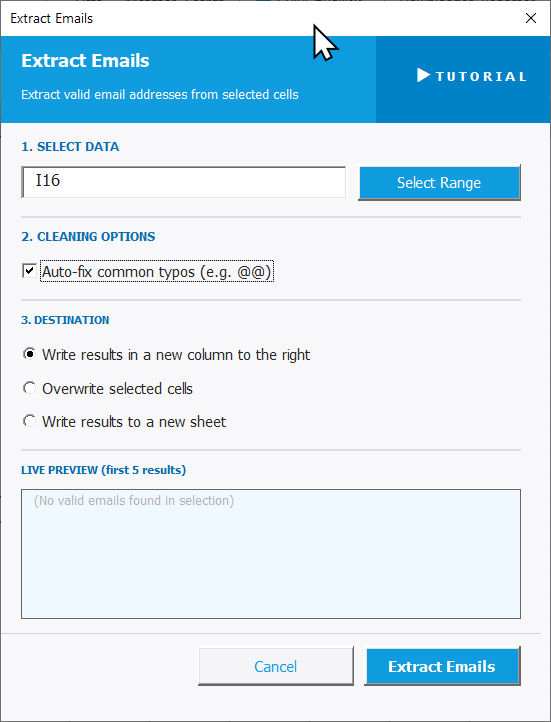
To open Extract Emails, go to the XLclick tab, find the Fix and Clean group, then click Extract > E-mails.
The panel is divided into clear steps:
1. SELECT DATA — Click Select Range and highlight the cells containing your raw contact data. The selected range reference will appear in the input field.
2. CLEANING OPTIONS — Enable the Auto-fix common typos checkbox to automatically correct misspelled domains — for example, gmial.com becomes gmail.com — before extraction runs.
3. DESTINATION — Choose where to output the extracted email list:
- Write results in a new column to the right — keeps your original data untouched.
- Overwrite selected cells — replaces the source range with the clean list.
- Write results to a new sheet — sends the output to a fresh tab.
The LIVE PREVIEW area shows the first 5 extracted results before you commit. Click Extract Emails to run, or Cancel to exit without changes.
Real-World Scenarios: Top Use Cases for Excel Extract Emails
A Newsletter Marketer With 2,000 Mixed Contacts and No Time to Sort Them
A content marketer exported her subscriber list from a CRM that had dumped email addresses, names, and phone numbers all into the same Excel column. She spent two hours manually scanning and copy-pasting emails one by one, missing typos like gmial.com before importing to her email platform.
With Extract Emails, she selected the column, enabled Auto-fix common typos, and chose Write results to a new sheet. In seconds, a clean and corrected email list was ready to import — with zero manual work.
A Freelance VA Asked to Clean a Client's Raw Lead Spreadsheet by End of Day
A freelance virtual assistant received a 600-row Excel file of raw leads — names, companies, emails, and notes all mixed into the same column. Her client needed a clean email list by end of day. Extracting each address manually and checking for typos would have taken most of the afternoon.
She opened Extract Emails, used Select Range to target the messy column, checked Auto-fix common typos, and set the destination to Write results in a new column to the right. The entire clean list was ready in under a minute.
A Small Business Owner Processing Business Card Contacts After a Trade Show
After a trade show, a small business owner typed all collected contacts into Excel — mixing names, job titles, emails, and notes into the same cells. Before sending a follow-up email campaign, she needed a clean list but had no time to scan every row manually.
Extract Emails pulled every valid email from her messy notes in one click. The LIVE PREVIEW let her verify the output before running, and Write results to a new sheet kept her original contact notes completely intact.
An Agency Account Manager Merging Contact Exports From Three Different Platforms
An agency account manager had to consolidate contact exports from three platforms into one Excel file. The result was a chaotic column mixing emails with names, job titles, and company names. Identifying and copying each address one by one would have taken most of her morning before the campaign could launch.
Using Extract Emails with Auto-fix common typos enabled, she extracted the full clean list in seconds. The LIVE PREVIEW confirmed accuracy before she committed, with results landing neatly in a new column to the right.
A SaaS Team Cleaning Old CRM Exports for a Re-Engagement Email Campaign
A small SaaS team pulled thousands of old leads from their CRM into Excel. The export was messy — email addresses mixed with other contact fields, and many had misspelled domains from years of manual data entry. Running a campaign on that raw data would have caused bounces and hurt deliverability.
With Extract Emails and Auto-fix common typos turned on, the tool extracted valid addresses and corrected domain errors automatically. The LIVE PREVIEW confirmed everything looked right before the final output.

Excel has always been my laboratory. After years of navigating data-heavy workflows, I created XLclick: the definitive add-in that simplifies complex analysis into a single click. It’s built for pros who want to spend less time on spreadsheets and more time on strategy.