Table Styler: Make Professional Excel Tables in One Click
Raw Excel data that looks plain and hard to read? Table Styler adds professional formatting, freezes the header, and auto-fits column widths — all in one click.

Essential Settings for Table Styler
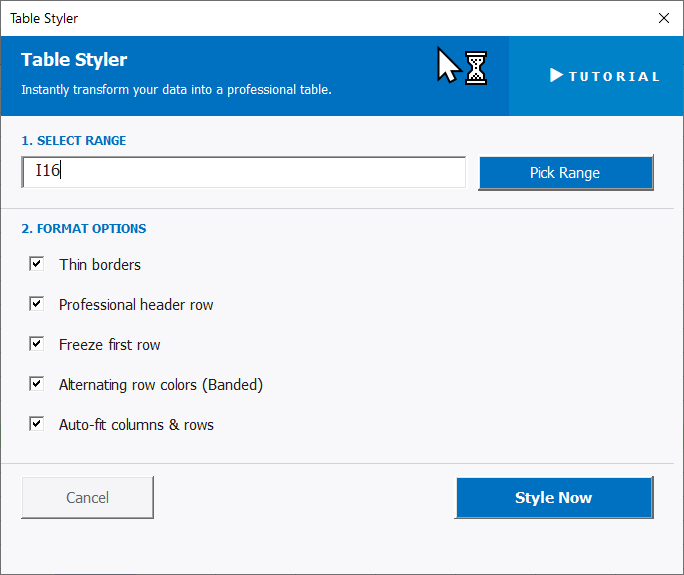
To open Table Styler, go to the XLclick tab, find the Graphics group, then click Table Styler.
The panel walks you through two steps:
1. SELECT RANGE — Click Pick Range and highlight the table you want to format, including the header row.
2. FORMAT OPTIONS — All five options are checked by default. Uncheck any you don't need:
- Thin borders — adds clean thin borders around every cell for a structured grid look.
- Professional header row — applies a bold, styled header to the first row so it stands out clearly from the data.
- Freeze first row — locks the header row so it stays visible as you scroll down through long tables.
- Alternating row colors (Banded) — applies alternating light background colors to rows, making long lists much easier to scan.
- Auto-fit columns and rows — resizes all columns and rows to fit their content, eliminating cut-off text and oversized empty columns.
Click Style Now to apply all selected formatting at once, or Cancel to exit.
Real-World Scenarios: Top Use Cases for Excel Table Styler
A Freelance Consultant Polishing a Data Table Before Sending a Client Deliverable
A freelance business consultant finished building a pricing analysis table in Excel. The data was solid, but the table looked raw — no borders, no header styling, columns too narrow to read the full text. Manually formatting each element before the client call would have taken 20 minutes he didn't have.
Table Styler applied borders, a styled header, alternating row colors, and auto-fitted all columns in one click. The table looked like a polished professional deliverable in seconds.
A Marketing Manager Preparing a Campaign Results Table for a Presentation
A marketing manager built a campaign performance table in Excel to share with leadership. The raw data grid looked unprofessional next to the designed slides in the presentation. She needed to quickly apply consistent formatting before the meeting, but manual cell-by-cell styling was too slow.
Table Styler with all options enabled transformed the plain table into a professionally formatted report element in one click. The frozen header meant leadership could scroll through results without losing context.
A Small Business Owner Making an Inventory List Readable for a New Staff Member
A small business owner needed to hand a 200-row inventory list to a new staff member for stock counting. The plain spreadsheet was hard to read — no visible row separation, column widths mismatched, header indistinguishable from data rows. Formatting it manually would have taken longer than the task warranted.
Table Styler added banded row colors, a clear header style, borders, and auto-fitted columns in one click. The new staff member could read and navigate the list immediately without confusion.
An HR Team Styling an Employee Roster Before Distributing It Company-Wide
An HR team prepared a company-wide staff roster in Excel to share with all managers. The data was complete, but the spreadsheet was visually bare — managers would struggle to read it on a screen without any formatting structure. Styling 300 rows and 10 columns manually was not an option under the time constraint.
Table Styler applied all five formatting options in one click — borders, header styling, frozen row, banded colors, and auto-fit. The roster was professional and ready to distribute in under a minute.
A Sales Rep Cleaning Up a Prospect Table Before a Client Discovery Call
A sales rep had a prospect research table in Excel — company names, contact details, notes, and status across six columns. Before a discovery call, he wanted the table to look organized and easy to reference on screen, not like a rough working document. Manual formatting was too slow to do before the call started.
Table Styler formatted the entire table in one click. The auto-fitted columns made all the text readable at a glance, and the frozen header kept the column names visible as he scrolled during the call.

Excel has always been my laboratory. After years of navigating data-heavy workflows, I created XLclick: the definitive add-in that simplifies complex analysis into a single click. It’s built for pros who want to spend less time on spreadsheets and more time on strategy.