Focus Mode: Never Lose Your Place in Excel Again
Always losing your place in a large Excel spreadsheet? Focus Mode highlights the entire row and column of your active cell so you never read the wrong row again.

Essential Settings for Focus Mode
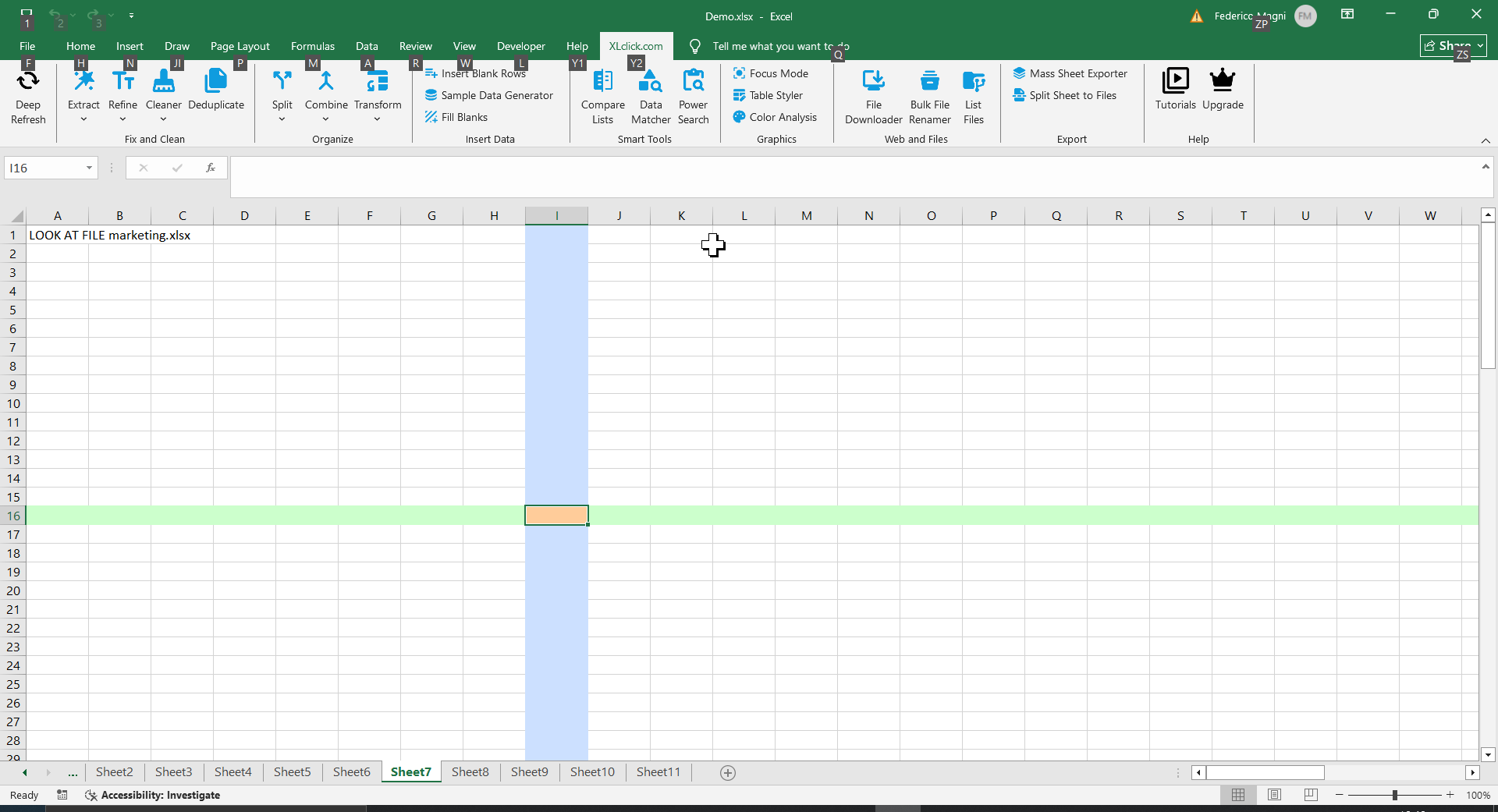
To open Focus Mode, go to the XLclick tab, find the Graphics group, then click Focus Mode.
The tool activates instantly — there is no settings panel to configure. Once enabled, a colored highlight automatically marks the full row and column of whichever cell you are currently in.
As you click or navigate through the spreadsheet, the highlight follows your selection in real time. This creates a crosshair effect that makes it impossible to accidentally read the wrong row or column in a wide or long table.
To turn Focus Mode off, click the button again in the XLclick ribbon. The highlight disappears immediately and your sheet returns to its normal appearance.
No data is changed, no formatting is permanently applied — Focus Mode is a display overlay only.
Real-World Scenarios: Top Use Cases for Excel Focus Mode
A Financial Analyst Who Keeps Reading the Wrong Row in a 50-Column Budget Table
A financial analyst worked daily with a wide Excel budget model — 50 columns across and hundreds of rows deep. When reviewing figures in the middle of the sheet, she regularly read values from the wrong row because there was no visual anchor. Small misreads led to incorrect comments in client meetings.
Focus Mode highlighted the entire row and column of her active cell automatically. She could navigate the wide table confidently without ever losing her place again.
A Freelance Bookkeeper Reconciling Long Transaction Logs Without Making Errors
A freelance bookkeeper spent hours each week reconciling bank transaction logs in Excel — long, repetitive lists where every row looked the same. Accidentally verifying the wrong transaction was easy to do, and a single error could cascade into a serious reconciliation problem.
Focus Mode gave him a clear row highlight as he worked through each transaction. The crosshair made it obvious which row he was on at all times, dramatically reducing the risk of marking the wrong entry.
A Small Business Owner Reviewing a Price List With Dozens of Similar Products
A small business owner maintained a price list with 200 similar products across several columns — product name, unit cost, sell price, margin, supplier code. When checking individual product margins, she regularly misread values by drifting to an adjacent row.
Focus Mode solved the problem immediately. With the active row highlighted, she could confidently scan across all columns for each product without visual drift. Price reviews became noticeably faster and more accurate.
An HR Manager Working Through a Large Staff Roster to Update Records
An HR manager updated a staff roster spreadsheet regularly — checking and amending records for 150 employees across 10 columns. Without any visual indicator of the current row, she occasionally edited the wrong employee's record, requiring corrections afterward.
Focus Mode gave her a persistent row highlight as she moved through the roster. Editing the wrong employee became impossible — the highlighted row made her position in the table unmistakably clear at all times.
A Marketing Agency Reviewing Campaign Performance Data in a Wide Reporting Table
A marketing agency team did weekly performance reviews using a wide Excel reporting table with one row per campaign and metrics spread across 30 columns. During reviews, team members would call out a campaign name but then look at values from the row below — leading to incorrect discussions.
Focus Mode was turned on at the start of every review session. Clicking a campaign row highlighted it in full, ensuring everyone in the room was looking at the correct data as metrics were discussed column by column.

Excel has always been my laboratory. After years of navigating data-heavy workflows, I created XLclick: the definitive add-in that simplifies complex analysis into a single click. It’s built for pros who want to spend less time on spreadsheets and more time on strategy.