Data Matcher: Connect Two Sheets Without VLOOKUP in Excel
Need to pull data from another Excel sheet without writing a VLOOKUP? Data Matcher builds the lookup formula for you in 3 clicks — no formula knowledge required at all.

Essential Settings for Data Matcher
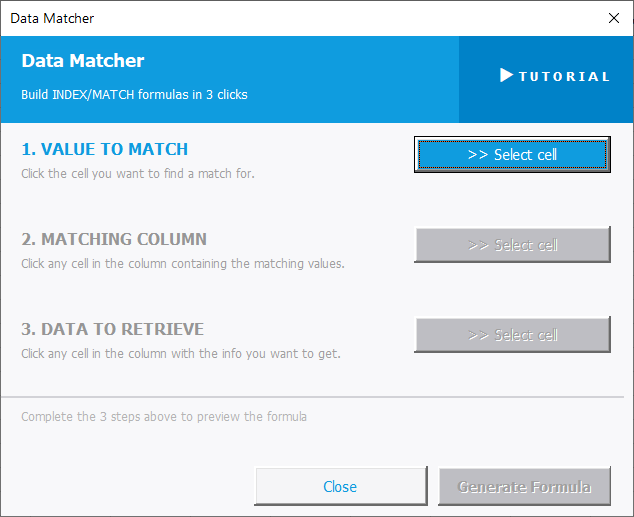
To open Data Matcher, go to the XLclick tab, find the Smart Tools group, then click Data Matcher.
The panel builds an INDEX/MATCH formula through three guided steps — each step activates as the previous one is completed:
1. VALUE TO MATCH — Click >> Select cell and click the cell containing the value you want to look up. This is the key you are searching for.
2. MATCHING COLUMN — Click >> Select cell and click any cell in the column where the tool should search for a match. This is where it looks for your key.
3. DATA TO RETRIEVE — Click >> Select cell and click any cell in the column containing the data you want returned. This is what gets pulled back when a match is found.
Once all three steps are complete, a preview of the generated formula appears in the panel. Click Generate Formula to insert it into your sheet, or Close to exit.
Real-World Scenarios: Top Use Cases for Excel Data Matcher
A Marketing Manager Pulling Campaign Budget Data Into a Reporting Sheet
A marketing manager had campaign results in one Excel sheet and budget allocations in another. She needed to bring the budget figure for each campaign into the results sheet to calculate ROI — but she had never written a VLOOKUP, and the INDEX/MATCH syntax looked intimidating.
Data Matcher walked her through three clicks: select the campaign name cell, select the campaign name column in the budget sheet, select the budget column. The formula was generated and inserted automatically. The ROI column was complete in minutes.
A Freelance Accountant Matching Invoice Numbers to Payment Records
A freelance accountant had a list of issued invoices in one Excel sheet and confirmed payments in another. He needed to bring the payment date alongside each invoice to identify which ones were still outstanding — a classic lookup task he always did manually row by row.
Data Matcher built the lookup formula in three clicks — match on invoice number, return the payment date. He applied it across all 200 rows and had the outstanding invoice list ready for the client in minutes.
A Small Business Owner Enriching a Product List With Supplier Names
A small business owner had a product catalog in Excel and a separate supplier reference sheet. She wanted to add the supplier name next to each product without writing formulas. She tried VLOOKUP once and gave up after the error messages.
Data Matcher guided her through selecting the product code, the product code column in the supplier sheet, and the supplier name column. The formula appeared instantly. Every product had a supplier name in one pass — no formula knowledge needed.
An HR Team Pulling Job Titles Into a Staff Contact List
An HR team had a master employee directory in one Excel sheet and a separate staff contact list maintained by the admin team. The contact list was missing job titles, which were needed for an org chart update. Writing a lookup formula across two sheets with different structures was beyond the admin team's Excel skills.
Data Matcher made the process foolproof. Three clicks — match on employee ID, return job title — and the formula populated the entire contact list. The org chart data was ready the same afternoon.
An Agency Analyst Joining Click Data to a Campaign Name Reference Table
An agency analyst had weekly click performance data in one Excel file and a campaign reference table in another, linked by campaign ID. She needed to add campaign names to the performance data for the client report, and doing it manually across 500 rows was not acceptable.
Data Matcher built the INDEX/MATCH formula in three clicks — match on campaign ID, return campaign name. The formula was applied to the full dataset in seconds, and the report was delivered the same day.

Excel has always been my laboratory. After years of navigating data-heavy workflows, I created XLclick: the definitive add-in that simplifies complex analysis into a single click. It’s built for pros who want to spend less time on spreadsheets and more time on strategy.