Power Search: The Ultimate Find & Replace for Excel
Excel's built-in search not cutting it? Power Search finds and replaces across all sheets at once, highlights matches in color before you change anything, and supports pattern-based searches.

Essential Settings for Power Search
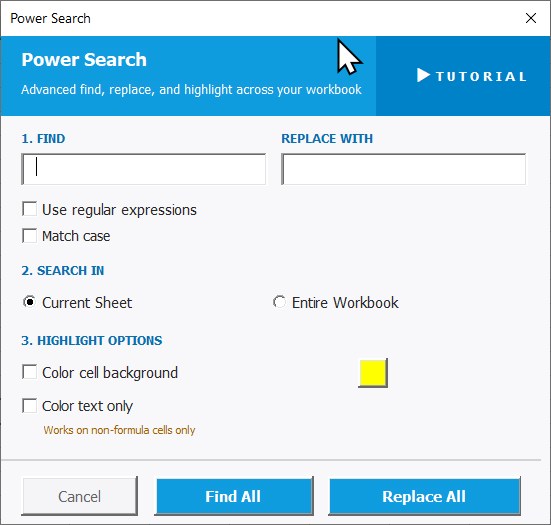
To open Power Search, go to the XLclick tab, find the Smart Tools group, then click Power Search.
The panel is organized into three sections:
1. FIND / REPLACE WITH — Enter the text to search for in the Find field and the replacement text in the Replace With field. Two additional options refine the search:
- Use regular expressions — enables pattern-based matching for advanced search scenarios.
- Match case — restricts results to exact case matches only.
2. SEARCH IN — Choose the scope of the search:
- Current Sheet — searches only the active sheet.
- Entire Workbook — searches all sheets simultaneously.
3. HIGHLIGHT OPTIONS — Before replacing, visually mark matches in your spreadsheet:
- Color cell background — fills matched cells with the chosen highlight color.
- Color text only — colors just the text of matched cells. Works on non-formula cells only.
Click Find All to locate and highlight all matches, or Replace All to replace them. Use Cancel to exit.
Real-World Scenarios: Top Use Cases for Excel Power Search
A Marketing Manager Updating a Campaign Name Across an Entire Workbook
A marketing manager needed to rename a campaign that appeared in 12 different sheets of a reporting workbook — in headers, tables, and chart labels. Using Excel's native Find and Replace meant running it once per sheet and hoping nothing was missed. One missed instance in a client report would look careless.
Power Search with Entire Workbook selected replaced every instance of the old campaign name across all 12 sheets in one operation. The workbook was updated accurately in seconds.
A Freelance Data Analyst Cleaning Up Inconsistent Category Labels Before Analysis
A freelance data analyst received a dataset where the same category appeared as n/a, N/A, and NA in different rows. Pivot tables and filters split them into three groups, breaking the analysis. He needed to standardize all three variants to a single value across a 2,000-row dataset.
Power Search with Match case off found all three variants and replaced them one by one with a single standardized label. The dataset was consistent and ready for analysis in under a minute.
A Small Business Owner Highlighting All Overdue Labels Before a Review Meeting
A small business owner had a project tracker in Excel with a Status column. Before a team meeting, she wanted to visually flag every cell containing Overdue so the team could quickly see what needed attention — without actually changing any values.
Power Search with Color cell background highlighted every Overdue status cell in red in one click using Find All. The meeting started with everyone immediately focused on the right items.
An Agency Team Replacing a Client Name After a Rebrand Across All Monthly Reports
An agency was managing a client that rebranded mid-year. The old company name appeared hundreds of times across 10 months of Excel reports. Each report was a separate sheet in one workbook. Finding and fixing every reference manually was a significant risk of missing something.
Power Search with Entire Workbook replaced the old name with the new one in every sheet simultaneously. The complete update took seconds, with no instances left behind.
An Operations Manager Finding All Cells Matching a Specific Product Code Pattern
An operations manager needed to locate all cells across a workbook that contained product codes starting with the prefix PRD- to audit a specific product line. With thousands of rows across multiple sheets, manually scrolling was not practical and basic search returned too many partial matches.
Power Search with Use regular expressions enabled and the pattern PRD-\d+ found every matching code precisely across the Entire Workbook. The Color cell background highlight made the audit set immediately visible.

Excel has always been my laboratory. After years of navigating data-heavy workflows, I created XLclick: the definitive add-in that simplifies complex analysis into a single click. It’s built for pros who want to spend less time on spreadsheets and more time on strategy.