Compare Lists: Compare Two Excel Lists for Differences
Have two Excel lists and need to know what's in common, what's missing, or what's unique to each? Compare Lists does the analysis instantly and outputs the results to a clean new sheet.

Essential Settings for Compare Lists
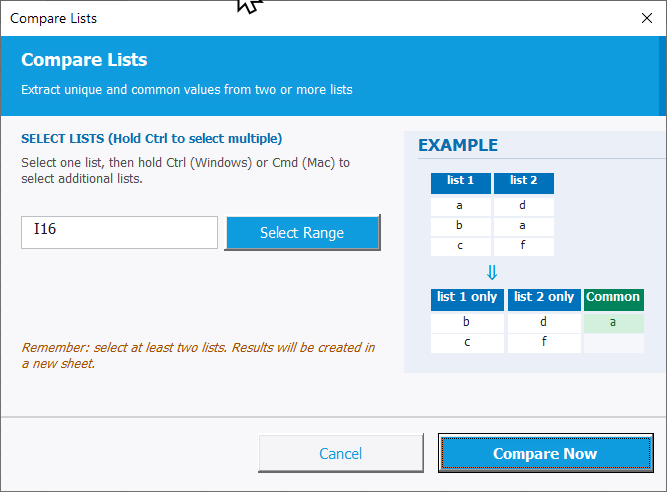
To open Compare Lists, go to the XLclick tab, find the Smart Tools group, then click Compare Lists.
The panel has one main step:
SELECT LISTS — Click Select Range to choose your first list. Then hold Ctrl (Windows) or Cmd (Mac) and click to add additional lists to the selection. You must select at least two lists.
A reminder at the bottom confirms: Results will be created in a new sheet. Your original lists are never modified.
Once you click Compare Now, the tool produces a results sheet with three columns:
- List 1 only — values that appear exclusively in the first list.
- List 2 only — values that appear exclusively in the second list.
- Common — values that appear in both lists.
Click Compare Now to run, or Cancel to exit without changes.
Real-World Scenarios: Top Use Cases for Excel Compare Lists
A Marketing Manager Checking Which Contacts Are Missing From the Invoicing List
A marketing manager had two Excel lists — her active client list and the invoicing list from finance. She suspected some clients were being missed in billing, but with 300 names across both lists, finding the gaps manually would have taken hours of side-by-side comparison.
Compare Lists produced a results sheet in seconds. The List 1 only column revealed exactly which clients were active but not invoiced. She sent the discrepancy report to finance the same morning.
a Freelance Recruiter Identifying Which Candidates Were Interviewed but Not Followed Up
A freelance recruiter had two lists in Excel — all candidates who completed interviews, and all candidates who received a follow-up email. She needed to find who had been missed so she could reach out before the client deadline. Manually cross-referencing 150 names would have been tedious and error-prone.
Compare Lists identified the candidates in the interview list but not in the follow-up list instantly. The List 1 only column gave her the exact names to contact, and no one slipped through.
A Small Business Owner Reconciling an Order List Against a Shipment Confirmation
A small business owner placed 80 orders with a supplier and received a shipment confirmation listing the items dispatched. She needed to verify which orders were included and which were missing — but the formats differed and manual comparison was slow and unreliable.
Compare Lists cross-referenced both lists in seconds. The Common column confirmed what was shipped, and List 1 only revealed the missing items she needed to chase immediately.
An Agency Comparing a Contracted Deliverable List Against What Was Actually Delivered
A marketing agency needed to verify that all contracted deliverables for a client project had been completed. The project manager had a list of contracted items and a separate list of items signed off by the client. Differences between the two needed to be flagged before the final invoice.
Compare Lists identified exactly what was delivered but not contracted, what was contracted but not yet delivered, and what matched. The results went straight into the project closure report.
An E-Commerce Team Comparing Last Month's Product List Against This Month's to Find New and Discontinued Items
An e-commerce team needed to track which products were added and which were discontinued between two monthly catalog snapshots stored in Excel. Both lists had thousands of SKUs, making manual comparison completely impractical.
Compare Lists surfaced new additions in List 2 only and discontinued products in List 1 only, while Common confirmed the stable catalog. The analysis was done in seconds instead of hours.

Excel has always been my laboratory. After years of navigating data-heavy workflows, I created XLclick: the definitive add-in that simplifies complex analysis into a single click. It’s built for pros who want to spend less time on spreadsheets and more time on strategy.