List Files: Create an Excel List of All Folder Files
Need an Excel inventory of everything inside a folder — file names, sizes, dates, and paths? List Files scans any folder and builds the complete list in seconds, automatically.

Essential Settings for List Files
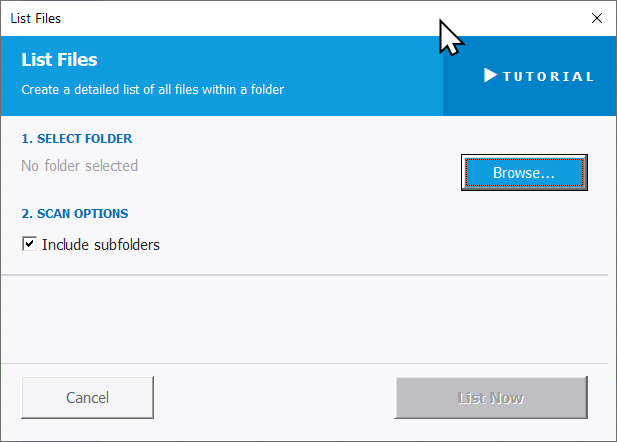
To open List Files, go to the XLclick tab, find the Web and Files group, then click List Files.
The panel has two steps:
1. SELECT FOLDER — Click Browse... to navigate to and select the folder you want to scan. The tool will generate an Excel list of all files found inside it.
2. SCAN OPTIONS — One checkbox controls scan depth:
- Include subfolders — when checked, the tool scans the selected folder and all folders nested inside it recursively, capturing the full file tree. Uncheck it to scan only the top-level folder.
Click List Now to run the scan. The results are output to a new Excel sheet with details for each file found — including file name, size, date modified, and full file path — ready to filter, sort, or share. Use Cancel to exit without scanning.
Real-World Scenarios: Top Use Cases for Excel List Files
A Freelance Project Manager Creating a File Inventory Before a Client Handover
A freelance project manager needed to document every file in a project delivery folder before handing it over to the client. The folder had hundreds of files across several subfolders. Manually listing them all — including paths and sizes — would have taken hours and been error-prone.
List Files with Include subfolders checked scanned the entire delivery folder in seconds. The output sheet included every file name, path, size, and date, which became the official project handover manifest.
A Small Business Owner Auditing a Shared Drive Before a Team Restructure
A small business owner needed to audit all files on a shared company drive before reorganizing it for a new team structure. Knowing what existed and where it was stored — across dozens of subfolders — was essential before moving or deleting anything.
List Files scanned the entire drive folder tree with one click. The resulting Excel inventory let her see everything at once, sort by date or size, and plan the restructure from a complete picture of what was there.
A Marketing Agency Documenting All Creative Assets for a Brand Archive
A marketing agency was archiving a completed brand project. The client wanted a documented list of every delivered asset — file name, type, size, and location — as part of the final deliverable package. Manually building that inventory from a folder of 400 files was not realistic.
List Files with Include subfolders generated the complete asset inventory instantly. The Excel output was formatted and delivered as the official brand archive index alongside the project files.
An Operations Team Cataloging Physical Archive Folders Stored on a Server
An operations team maintained years of reports stored in dated folders on a file server. For a compliance audit, the auditor requested a complete list of all stored files with dates and paths. Generating this manually from the server folder tree would have taken days.
List Files scanned the entire archive folder with subfolders in one operation. The Excel file inventory — complete with dates modified and full paths — was ready to send to the auditor the same day the request arrived.
A Freelance VA Preparing a File List to Share With a Client Before a Cleanup
A freelance virtual assistant was hired to organize a client's cluttered downloads and documents folders. Before deleting or moving anything, the client wanted to review a complete list of what was there. Manually typing out file names, sizes, and dates from the folder view was completely impractical.
List Files generated a full Excel inventory of the client's folders in seconds. The client reviewed the list, flagged what to keep and what to delete, and the cleanup was completed without any guesswork.

Excel has always been my laboratory. After years of navigating data-heavy workflows, I created XLclick: the definitive add-in that simplifies complex analysis into a single click. It’s built for pros who want to spend less time on spreadsheets and more time on strategy.