Bulk File Renamer: Rename Folders of Files Using Excel
Need to rename hundreds of files on your computer using values from an Excel spreadsheet? Bulk File Renamer maps old names to new names and renames everything in seconds.

Essential Settings for Bulk File Renamer
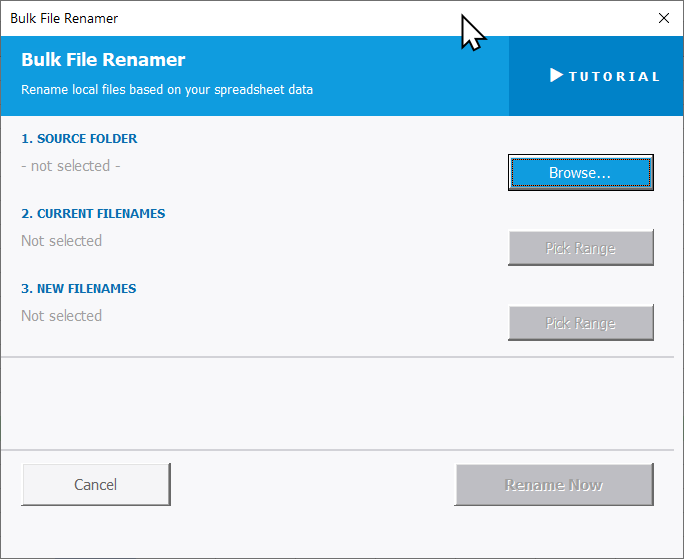
To open Bulk File Renamer, go to the XLclick tab, find the Web and Files group, then click Bulk File Renamer.
The panel walks you through three steps:
1. SOURCE FOLDER — Click Browse... to navigate to the folder on your computer that contains the files you want to rename. The tool will only look for files in the folder you specify.
2. CURRENT FILENAMES — Click Pick Range and select the column in your spreadsheet that contains the current file names (exactly as they appear in the folder, including extension).
3. NEW FILENAMES — Click Pick Range and select the column containing the new names you want to assign to each file. The tool maps each current name to its corresponding new name row by row.
Once all three steps are complete, click Rename Now to apply the renaming operation across all matched files in the folder. Use Cancel to exit without making changes.
Real-World Scenarios: Top Use Cases for Excel Bulk File Renamer
A Marketing Manager Renaming Campaign Asset Files to Match a New Naming Convention
A marketing manager's team had hundreds of creative asset files named with inconsistent codes from an old project system. A new naming convention had been agreed with the client, and every file needed to be renamed before the handover. Renaming them in Windows Explorer one by one would have taken the better part of a day.
Bulk File Renamer with the old names in one Excel column and new names in another renamed every file in the folder in seconds. The handover package was ready in minutes.
A Freelance Photographer Renaming Delivered Image Files by Client Reference Codes
A freelance photographer delivered sets of images to clients. Each shoot produced 200+ files named by camera sequence number — IMG_0042.jpg through IMG_0260.jpg. Clients needed files renamed by their own reference codes for their asset libraries. Renaming manually for every delivery was taking hours.
Bulk File Renamer with the original file names and client reference codes organized in Excel renamed the entire delivery set in one click. Each client received a properly named, organized set of files every time.
A Small Business Owner Renaming Product Files After a SKU Update
A small business owner updated her entire product SKU system. Every product image and PDF specification file on her computer was named with the old SKU. Before uploading to the new website, all files needed to match the new SKU naming scheme — hundreds of files across multiple product categories.
Bulk File Renamer with old SKUs in one column and new SKUs in the matching column renamed every file in each folder in seconds. The website upload started the same day the SKU update was finalized.
An E-Commerce Team Renaming Imported Product Files to Match Platform Requirements
An e-commerce team imported product images from a supplier. The files arrived with the supplier's internal naming system, but the platform required a specific format for images to associate correctly with product listings. Manually renaming 800 files to match the platform's expected format was not feasible.
Bulk File Renamer with the supplier names and platform-required names organized in the Excel product master renamed all 800 files at once. The platform import matched perfectly on the first attempt.
An Agency Renaming Client Deliverable Files Before a Project Handover
A creative agency completed a large brand project and needed to deliver a structured file package to the client. The internal working file names were informal — like draft-v3-FINAL-USE-THIS.pdf. The delivery package required professional, client-facing names matching the agreed deliverable list.
Bulk File Renamer with working names in one Excel column and final delivery names in another renamed the entire project output in one operation. The handover package looked organized and professional without a minute of manual file renaming.

Excel has always been my laboratory. After years of navigating data-heavy workflows, I created XLclick: the definitive add-in that simplifies complex analysis into a single click. It’s built for pros who want to spend less time on spreadsheets and more time on strategy.