File Downloader: Download Hundreds of Files from Excel URLs
Got a column of file URLs in Excel and need to download them all to your computer? File Downloader grabs every file automatically — and can rename each one using values from your spreadsheet.

Essential Settings for File Downloader
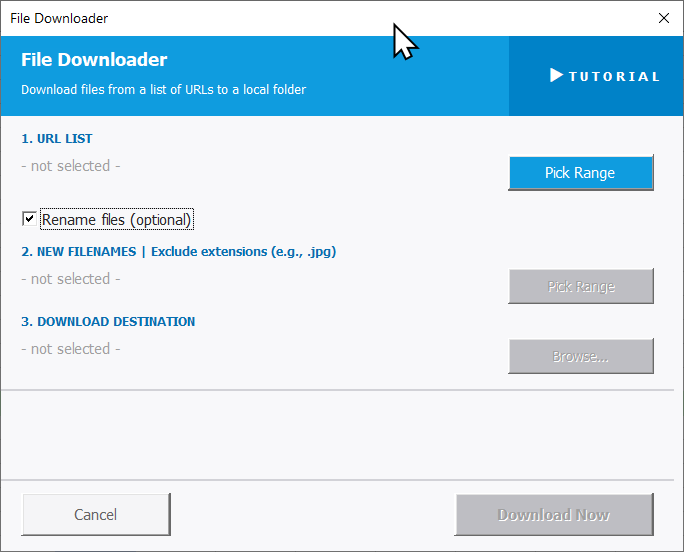
To open File Downloader, go to the XLclick tab, find the Web and Files group, then click File Downloader.
The panel walks you through three steps:
1. URL LIST — Click Pick Range and select the column containing the file URLs to download. The tool will attempt to download each URL in sequence.
An optional checkbox — Rename files (optional) — lets you assign custom names to each downloaded file based on another column in your spreadsheet:
2. NEW FILENAMES — If renaming is enabled, click Pick Range to select the column containing the new file names. Enter names without extensions (e.g. without .jpg) — the tool handles that automatically.
3. DOWNLOAD DESTINATION — Click Browse... to choose the local folder where all files will be saved.
Once all steps are configured, click Download Now to start the batch download. The tool processes every URL in the list automatically. Use Cancel to exit without downloading.
Real-World Scenarios: Top Use Cases for Excel File Downloader
A Marketing Manager Downloading Product Images From a Supplier URL List
A marketing manager received a spreadsheet from a supplier with 300 product image URLs and corresponding product names. She needed all images downloaded and named by product code before a catalog update. Clicking each URL and saving manually was not realistic for 300 files.
File Downloader downloaded all 300 images in one batch and renamed each file using the product code column. The entire image library was in a local folder, correctly named, in minutes.
A Freelance Developer Batch-Downloading Client Asset Files From a Spreadsheet
A freelance developer received a project brief in Excel with 80 asset URLs — logos, fonts, and reference images hosted online. He needed everything downloaded to a project folder before starting work. Opening each URL in a browser and saving individually would have taken a significant portion of his morning.
File Downloader with the asset URLs and target folder selected downloaded all 80 files automatically. He started the actual project work in the same time it previously took just to gather the files.
A Small Business Owner Downloading Invoice PDFs From an Accounting Platform Export
A small business owner exported a list of invoice download URLs from her accounting platform into Excel. She needed all invoices saved locally for a tax audit. With 150 invoices over two years, manually clicking and saving each PDF was going to take most of the day.
File Downloader downloaded all 150 PDFs to a designated folder automatically. With the Rename files option enabled and invoice numbers in a separate column, each PDF was named by invoice number, making the audit folder instantly organized.
An E-Commerce Team Downloading Competitor Product Images for Analysis
An e-commerce team collected competitor product page URLs in an Excel spreadsheet during a market research project. They needed the product images saved locally for a visual comparison analysis. Downloading 200 images one at a time from each URL was not a workable process.
File Downloader processed the URL list and saved all images to a research folder in one batch. The team started the visual analysis immediately, without spending time on the download process itself.
A Content Agency Downloading Article Featured Images From a CMS Export
A content agency exported a list of published article URLs including featured image links from their CMS into Excel. They needed all featured images downloaded and renamed by article slug before migrating to a new platform. With 500 articles, manual downloading was completely out of the question.
File Downloader downloaded all 500 images in a single batch and renamed each one using the article slug column. The migration asset package was ready in the time it would have taken to manually download the first 20 files.

Excel has always been my laboratory. After years of navigating data-heavy workflows, I created XLclick: the definitive add-in that simplifies complex analysis into a single click. It’s built for pros who want to spend less time on spreadsheets and more time on strategy.