Insert Empty Rows at Regular Intervals in Excel
Need to add spacing between every row — or every fifth row — in your Excel table? Insert Blank Rows does it automatically at any interval, saving you from inserting them one by one.

Essential Settings for Insert Blank Rows
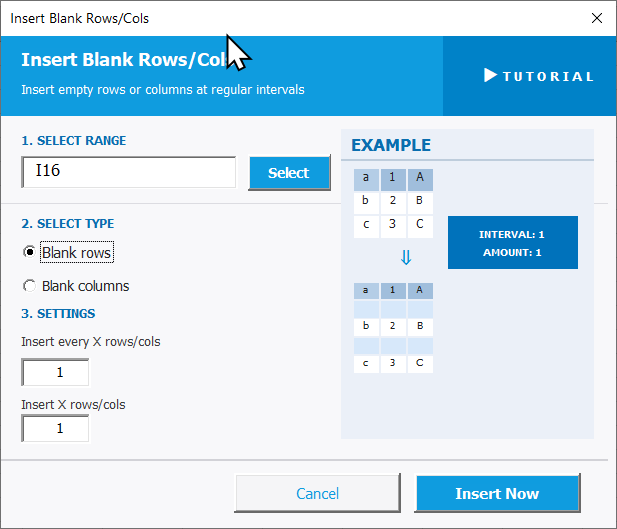
To open Insert Blank Rows, go to the XLclick tab, find the Insert Data group, then click Insert Blank Rows.
The panel walks you through three steps:
1. SELECT RANGE — Click Select and highlight the data range where you want blank rows or columns inserted.
2. SELECT TYPE — Choose what to insert:
- Blank rows — inserts empty rows between your data rows at the interval you set.
- Blank columns — inserts empty columns between your data columns at the interval you set.
3. SETTINGS — Configure the interval:
- Insert every X rows/cols — how often to insert a blank. Set to 1 to add a blank after every row, set to 5 to add one after every 5 rows.
- Insert X rows/cols — how many blank rows or columns to insert at each interval.
An EXAMPLE panel on the right shows a live preview of the result. Click Insert Now to apply, or Cancel to exit.
Real-World Scenarios: Top Use Cases for Excel Insert Blank Rows
A Marketing Manager Formatting a Printed Campaign Report With Visual Breathing Room
A marketing manager needed to print a campaign performance table for a board meeting. The 80-row table looked dense and hard to read in print. She wanted a blank row after every five rows of data to separate the groups visually — but inserting them manually one by one would have taken far too long.
Insert Blank Rows with Insert every 5 rows and Insert 1 row added the spacing throughout the entire table in one click. The printed report looked clean and professional.
a Freelance Template Designer Preparing a Data Entry Form With Empty Input Rows
A freelance template designer was building an Excel data entry form for a client. The layout required one pre-filled label row followed by one blank input row for each entry — alternating throughout the table. Creating 50 pairs of rows manually was tedious and error-prone.
Insert Blank Rows with Insert every 1 row and Insert 1 row added a blank after every existing row in one pass. The alternating layout was complete in seconds.
A Small Business Owner Separating Weekly Data Groups in a Monthly Log
A small business owner kept a daily sales log in Excel with 7 rows per week. At the end of each month, she wanted a blank row between each week to make the file easier to read and navigate. Adding them manually in a 30-row file was fine, but her log had grown to 300 rows.
Insert Blank Rows with Insert every 7 rows placed a separator between each weekly group across the entire log in one click. The monthly log became easy to scan at a glance.
An HR Manager Adding Blank Rows Between Employee Groups in a Roster
An HR manager maintained a staff roster grouped by department. Each department section had a different number of rows, but she always wanted a blank row between each group for clarity. Inserting them manually each time she updated the roster was a small but consistently annoying task.
Insert Blank Rows configured to the group size added consistent spacing throughout the roster in one operation. The formatted roster was ready to print or share within seconds of the data update.
An Operations Team Preparing an Audit-Ready Log With Blank Signature Rows
An operations team needed to print a procedure log for manual sign-off. Each logged action needed a blank row below it for a supervisor signature — 120 actions, 120 blanks needed. Inserting them row by row through the sheet would have taken 20+ minutes.
Insert Blank Rows with Insert every 1 row and Insert 1 row added all 120 blank signature rows in one click. The log was printed and ready for sign-off immediately.

Excel has always been my laboratory. After years of navigating data-heavy workflows, I created XLclick: the definitive add-in that simplifies complex analysis into a single click. It’s built for pros who want to spend less time on spreadsheets and more time on strategy.