Fill Blanks: Fill Empty Excel Cells Automatically
Blank cells scattered through your Excel column breaking your filters and pivot tables? Fill Blanks fills every empty cell automatically — with a fixed value or the content of a nearby cell.

Essential Settings for Fill Blanks
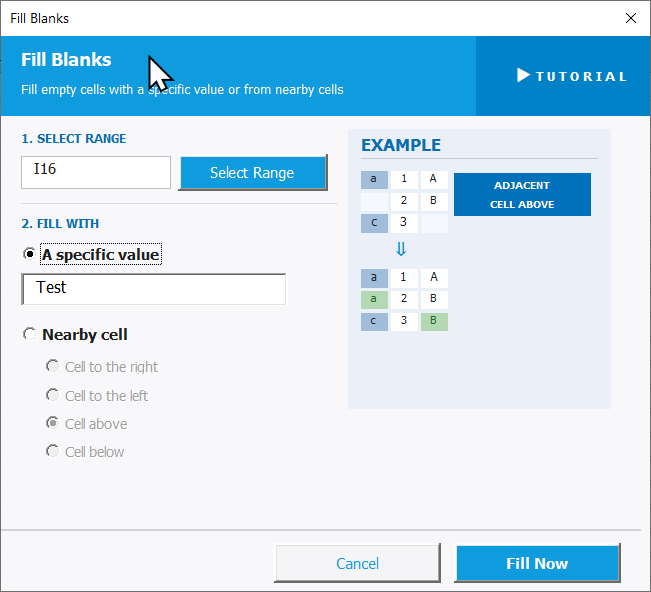
To open Fill Blanks, go to the XLclick tab, find the Insert Data group, then click Fill Blanks.
The panel walks you through two steps:
1. SELECT RANGE — Click Select Range and highlight the cells containing the blanks you want to fill.
2. FILL WITH — Choose the fill method:
- A specific value — type any text or number in the input field below. Every blank cell in the selection will be filled with that exact value.
- Nearby cell — copies the value from an adjacent cell into each blank. Choose the direction:
- Cell above — fills each blank with the value from the cell directly above it. Ideal for repeating category labels down a column.
- Cell below — fills each blank with the value from the cell directly below.
- Cell to the right — fills each blank from the right neighbor.
- Cell to the left — fills each blank from the left neighbor.
An EXAMPLE panel on the right shows a preview of the result. Click Fill Now to apply, or Cancel to exit.
Real-World Scenarios: Top Use Cases for Excel Fill Blanks
A Data Analyst Fixing a Pivot Table That Groups Incorrectly Because of Blank Cells
A data analyst had a category column in Excel where each category label appeared only once at the top of its group, with blank cells below. When she built a pivot table, every blank cell became its own group — breaking the entire summary. She needed every blank filled with the category above it.
Fill Blanks with Cell above filled every empty cell with the correct category label in one click. The pivot table grouped perfectly on the next refresh.
A Freelance VA Preparing an Exported CRM Report With Missing Region Labels
A freelance virtual assistant received a CRM export in Excel where the region name appeared only on the first row of each region group, with all subsequent rows in that group left blank. Filters and lookups failed because most rows had no region value.
Fill Blanks with Cell above propagated every region label down through its group in one pass. The report was fully populated and ready for filtering and analysis immediately.
A Small Business Owner Filling a Price Column With a Default Placeholder
A small business owner was uploading a product catalog to her online store. Several products had no price set yet, leaving blank cells in the price column. The upload system required a value in every cell — blanks caused the import to fail.
Fill Blanks with A specific value set to 0 filled every blank price cell with a placeholder in one click. The import ran successfully, and she updated the real prices afterward.
A Marketing Team Completing a Campaign Tracker With Missing Channel Assignments
A marketing team maintained a campaign tracker in Excel where the channel column was often left blank for smaller campaigns that hadn't been fully briefed yet. Reporting by channel was impossible because blank cells were excluded from every filter and count formula.
Fill Blanks with A specific value set to Unassigned filled every blank channel cell instantly. The reports now captured all campaigns, including unassigned ones, giving a complete picture.
An HR Manager Filling a Department Column Exported With Grouped Blanks
An HR manager exported a staff list from the HR system where the department name appeared only on the first employee in each department group. Every subsequent employee in that department had a blank in the department column. Filtering by department was impossible in that state.
Fill Blanks with Cell above filled every blank department cell down through each group in one operation. The full staff list was properly attributed and ready for headcount reporting.

Excel has always been my laboratory. After years of navigating data-heavy workflows, I created XLclick: the definitive add-in that simplifies complex analysis into a single click. It’s built for pros who want to spend less time on spreadsheets and more time on strategy.