Sample Data Generator: Generate Realistic Fake Data in Excel
Need realistic test data in Excel fast — names, emails, phone numbers — without using real customer information? Sample Data Generator creates it in seconds, as many rows as you need.

Essential Settings for Sample Data Generator
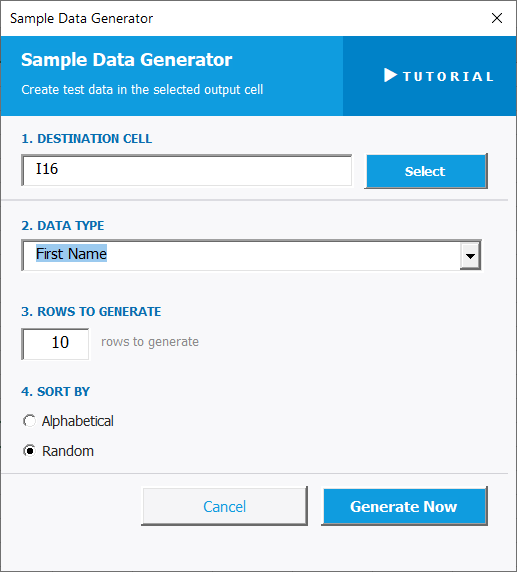
To open Sample Data Generator, go to the XLclick tab, find the Insert Data group, then click Sample Data Generator.
The panel walks you through four steps:
1. DESTINATION CELL — Click Select and choose the cell where the generated data should start. Data will be output downward from that cell.
2. DATA TYPE — Use the dropdown to choose the type of fake data to generate. Options include First Name, last names, email addresses, phone numbers, and other realistic data types.
3. ROWS TO GENERATE — Enter the number of rows of data you want to create in the input field.
4. SORT BY — Choose how the generated data is ordered:
- Alphabetical — sorts the generated values A to Z.
- Random — outputs values in a randomized order, more realistic for test datasets.
Click Generate Now to insert the data, or Cancel to exit.
Real-World Scenarios: Top Use Cases for Excel Sample Data Generator
A Developer Testing a New Excel Import Without Using Real Customer Data
A developer was building an import pipeline for a new CRM and needed a realistic Excel file to run test imports against. Using real customer data was not allowed under the company's data policy, and creating 200 fake names, emails, and phone numbers by hand would have taken hours.
Sample Data Generator filled each column with the right data type — names, emails, phone numbers — in seconds. With Random sort enabled, the test file looked completely authentic.
A Freelance Trainer Creating Demo Files for an Excel Training Course
A freelance Excel trainer needed demo spreadsheets for her training courses — files with realistic names and contact data that students could work with during exercises. Using real data was off-limits, and building believable fake datasets manually every time she created a new lesson was tedious.
Sample Data Generator populated her training files with first names, last names, and email addresses in the right quantity for each exercise. The demo files were ready in minutes.
A Small Business Owner Testing a New Email Template With Fake Subscriber Data
A small business owner was setting up an email marketing platform for the first time and needed to test the import and template personalization with subscriber data. She didn't want to use real contacts for a test run, but entering realistic-looking fake data by hand was impractical.
Sample Data Generator created a test subscriber list with 50 first names, last names, and email addresses. The import and personalization test ran perfectly without touching any real contact information.
A Marketing Agency Presenting a Dashboard Mockup to a New Client
A marketing agency was pitching a custom Excel dashboard to a prospective client. They needed to demonstrate the tool with realistic-looking data, but using data from existing clients would have been inappropriate. Creating believable placeholder data for a 100-row demo by hand was not a good use of time.
Sample Data Generator filled the dashboard with realistic names and contact data instantly. The pitch demo looked authentic, and the client approved the project the same day.
An Operations Team Running a Stress Test on a New Data Processing Script
An operations team wrote a script to process Excel files and needed to stress test it with large volumes of data — 5,000 rows of realistic input. Using production data for testing was out of the question, and generating thousands of realistic fake entries manually was not feasible.
Sample Data Generator built a 5,000-row test file with the right data types in under a minute. The stress test ran against realistic data, exposing performance issues before the script went live.

Excel has always been my laboratory. After years of navigating data-heavy workflows, I created XLclick: the definitive add-in that simplifies complex analysis into a single click. It’s built for pros who want to spend less time on spreadsheets and more time on strategy.