Split Sheet to Files: Split One Big Excel File into Many
One massive Excel sheet that needs to be broken into smaller files? Split Sheet to Files chunks it automatically by row count or number of files — header included in every output.

Essential Settings for Split Sheet to Files
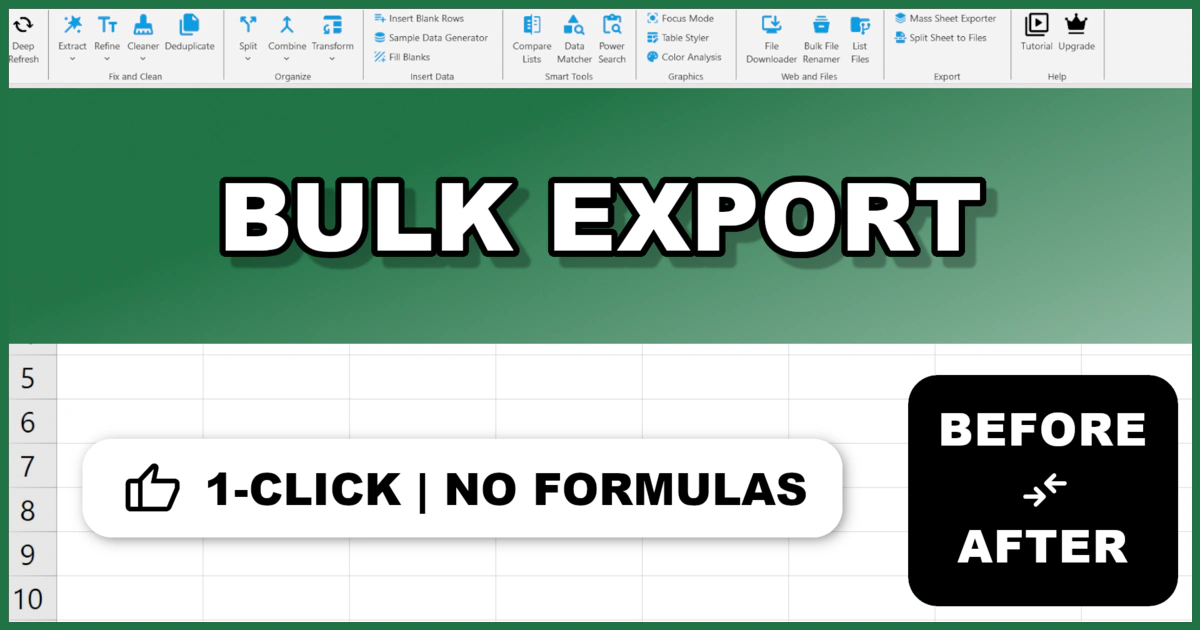
To open Split Sheet to Files, go to the XLclick tab, find the Export group, then click Split Sheet to Files.
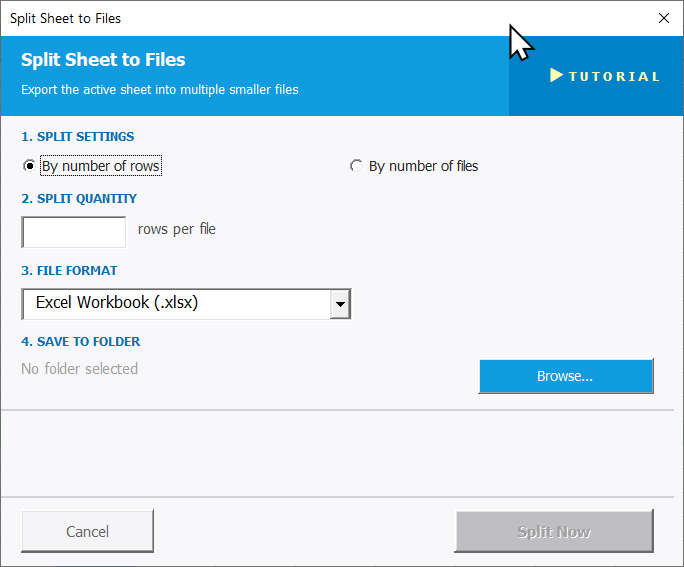
The panel walks you through four steps:
1. SPLIT SETTINGS — Choose how to divide the sheet:
- By number of rows — splits the sheet into files containing a fixed number of rows each.
- By number of files — splits the sheet into a fixed number of output files, distributing rows evenly.
2. SPLIT QUANTITY — Enter the number of rows per file (if splitting by rows) or the number of files to create (if splitting by file count) in the rows per file input field.
3. FILE FORMAT — Choose the output format from the dropdown. The default is Excel Workbook (.xlsx).
4. SAVE TO FOLDER — Click Browse... to select the destination folder where the split files will be saved. Each output file automatically includes the header row from the original sheet.
Click Split Now to run, or Cancel to exit.
Real-World Scenarios: Top Use Cases for Excel Split Sheet to Files
A Data Analyst Splitting a 100,000-Row Export to Fit a System Row Limit
A data analyst needed to upload a 100,000-row Excel export to an analytics platform that had a 10,000-row import limit. Manually cutting the file into 10 equal chunks — and remembering to add the header row to each one — was error-prone and slow.
Split Sheet to Files with By number of rows set to 10,000 created 10 properly sized files automatically, each with the header row included. All 10 were ready for upload in under a minute.
A Marketing Manager Splitting a Campaign Contact List for Multiple Sending Batches
A marketing manager had a cleaned email list of 50,000 contacts to send a campaign to. Her email platform performed better with batches of 5,000 contacts per send. Splitting the list manually meant careful counting, copy-pasting, and adding headers to each batch — across 10 separate files.
Split Sheet to Files with By number of rows set to 5,000 split the contact list into 10 batch files automatically, each with the correct header. The sends were scheduled the same day.
A Freelance Data Consultant Delivering a Client Dataset in Manageable Chunks
A freelance data consultant prepared a final dataset of 80,000 rows for a client whose team would work with it in Excel — a tool that becomes slow and unwieldy at that size. The client requested the data delivered in chunks of 20,000 rows to keep workbooks fast and manageable.
Split Sheet to Files set to By number of rows with 20,000 per file produced four clean output files in seconds. Each file had the header row intact and was delivered to the client that afternoon.
A Small Business Owner Breaking a Large Supplier Order List Into Regional Batches
A small business owner had an order list of 3,000 rows covering three regional warehouses. Each warehouse needed its own file with roughly equal portions of the orders. Manually separating the rows and creating three files — each with a header — was fiddly and time-consuming.
Split Sheet to Files with By number of files set to 3 divided the orders evenly across three files automatically. Each warehouse file was ready to send within seconds of completing the export.
An Operations Team Splitting a Large Log File Before Archiving
An operations team had a 200,000-row system log in Excel that needed to be archived in annual chunks — one file per year of approximately 50,000 rows. Manually cutting and saving four archive files from a sheet that size was slow and risky without automation.
Split Sheet to Files with By number of rows set to 50,000 split the log into four files in one click, each with the original header row. The archive was structured and saved before the end of the working hour.

Excel has always been my laboratory. After years of navigating data-heavy workflows, I created XLclick: the definitive add-in that simplifies complex analysis into a single click. It’s built for pros who want to spend less time on spreadsheets and more time on strategy.