Mass Sheet Exporter: Export Every Excel Sheet as a New File
Got an Excel workbook with 10 sheets that each need to be saved as a separate file? Mass Sheet Exporter exports all of them at once — no opening, saving, and closing one by one.

Essential Settings for Mass Sheet Exporter
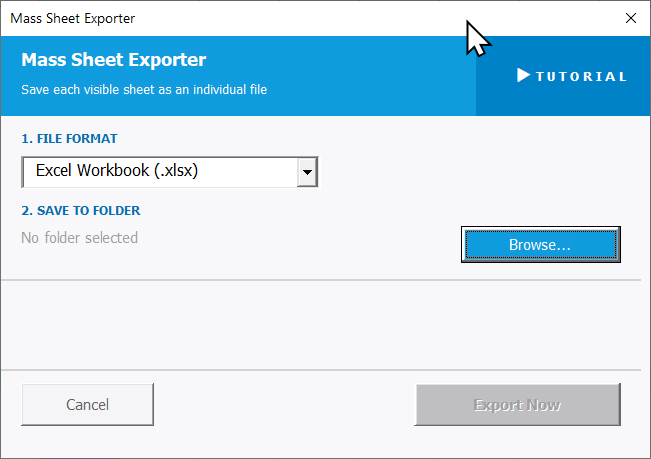
To open Mass Sheet Exporter, go to the XLclick tab, find the Export group, then click Mass Sheet Exporter.
The panel has two steps:
1. FILE FORMAT — Use the dropdown to choose the format for the exported files. The default is Excel Workbook (.xlsx), but other formats may be available depending on your configuration.
2. SAVE TO FOLDER — Click Browse... to select the destination folder on your computer where all the exported files will be saved. Each sheet will be exported as a separate file and named after the sheet tab name.
Click Export Now to run the export. Every visible sheet in the workbook is saved as its own individual file in the selected folder simultaneously. Use Cancel to exit without exporting.
Real-World Scenarios: Top Use Cases for Excel Mass Sheet Exporter
A Financial Controller Distributing Monthly Department Reports as Separate Files
A financial controller maintained one Excel workbook with 12 department budget sheets — one per department. At the end of each month, she needed to send each department their own file. Manually opening, copying, saving, and emailing each sheet as a standalone file took over an hour every month.
Mass Sheet Exporter exported all 12 sheets as separate Excel files in one click. Each department head received their own file — named after the sheet tab — the same morning the reports were finalized.
A Freelance Consultant Delivering Individual Client Reports From a Consolidated Workbook
A freelance business consultant built client reports in a single Excel workbook — one sheet per client, 15 clients total. At delivery time, each client needed their own standalone file. Going through each sheet and saving it individually was the most tedious part of every project close-out.
Mass Sheet Exporter exported all 15 client sheets as separate files in seconds. What used to take 20 minutes of repetitive clicking became a one-click operation at the end of every engagement.
A Small Business Owner Sending Personalized Price Lists to Individual Suppliers
A small business owner maintained a workbook with one supplier price list per sheet — eight suppliers, eight sheets. Every quarter she needed to send each supplier their own individual file with just their pricing. Doing it manually meant eight save-as operations and careful attention to not mix up the files.
Mass Sheet Exporter exported all eight sheets as separate named files in one operation. Each file went straight into the supplier folder, ready to attach and send — with no risk of sending the wrong file to the wrong supplier.
An Agency Team Exporting Client-Specific Campaign Reports From a Master Workbook
A marketing agency tracked campaign performance for 20 clients in a single Excel workbook — one sheet per client. At the end of each month, every client needed their own report file. Manually exporting 20 sheets took the team most of Monday morning every month.
Mass Sheet Exporter cut the export process to one click. All 20 client reports landed in the delivery folder as separate, correctly named files simultaneously. The team reclaimed their Monday mornings.
An HR Manager Exporting Department-Level Headcount Sheets Before a Restructure
An HR manager had headcount data organized by department in a single Excel workbook — one sheet per department, 15 departments. Before a company restructure, each department head needed their own standalone file to review privately. Exporting them individually through File > Save As 15 times was tedious and time-consuming.
Mass Sheet Exporter exported all 15 department files at once. The exports were distributed to department heads the same afternoon the restructure briefing was issued.

Excel has always been my laboratory. After years of navigating data-heavy workflows, I created XLclick: the definitive add-in that simplifies complex analysis into a single click. It’s built for pros who want to spend less time on spreadsheets and more time on strategy.