
6 Excel Tasks to Secure Your Files for GDPR & Data Privacy
Sharing an Excel file sounds simple — until you stop and think about what's actually inside it. Hidden comments left over from internal reviews. Duplicate contact records that inflate your database and create inconsistencies. Formulas referencing external data sources that a third party has no business seeing. Names and email addresses of real customers embedded in a file destined for a freelancer, a vendor, or an auditor. Under GDPR in Europe and CCPA in the United States, each of these is a potential compliance failure, and the consequences range from reputational damage to substantial regulatory fines.
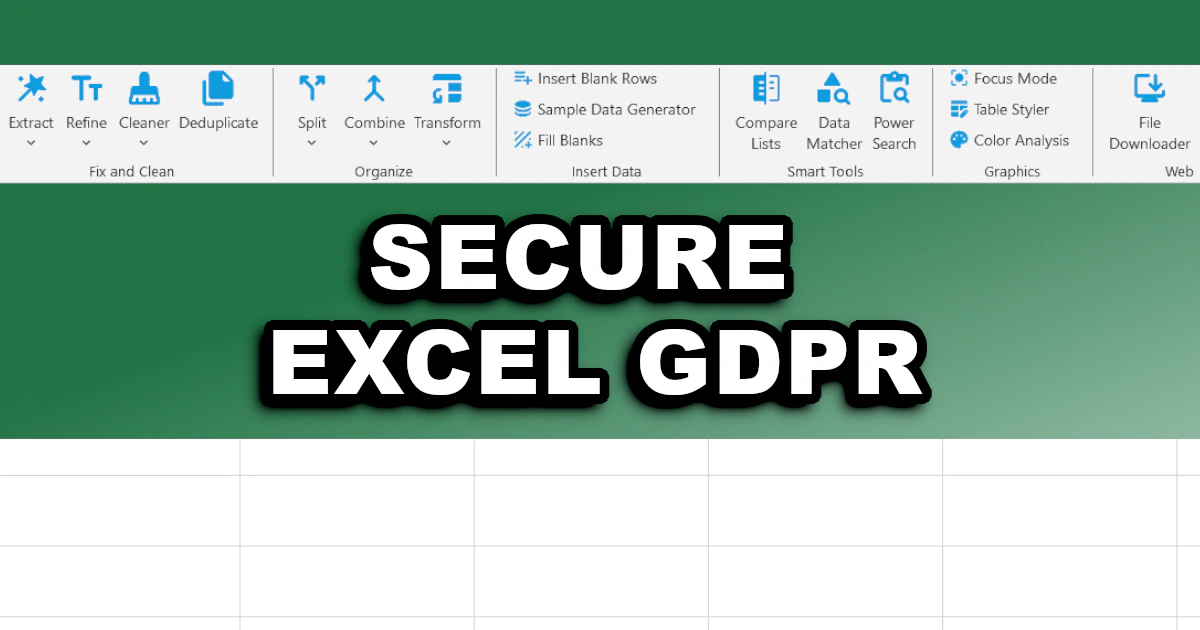
The problem is that most Excel data privacy checks are done manually — or not at all. Before a file goes out, someone scans it quickly, deletes a few obvious things, and clicks send. That's not a compliance workflow. It's wishful thinking. XLclick is an Excel add-in that puts the most critical pre-delivery operations directly in your ribbon, each one executable in a single click. Here is a practical six-step checklist for anyone who handles sensitive data in Excel and needs to get it right before sharing.
1. Mask Names and Emails Before Sending to Third Parties
This is the most direct GDPR compliance requirement that Excel users regularly ignore. When a file containing real customer names, email addresses, or other personally identifiable information needs to go to a developer for testing, a designer for layout work, or an external agency for campaign setup, that data must be anonymized first. Sending real PII to a third party without a legitimate legal basis is a violation — regardless of whether the recipient intends to use it or not.
The Data Anonymizer tool handles this in one operation. Select the columns containing sensitive data — names, emails, or physical addresses — and choose the replacement type: random names, generated email addresses, randomized digit sequences, or fake postal addresses. The tool replaces every real value with realistic-looking synthetic data, producing a file that functions correctly for any downstream purpose without exposing a single real identity. For teams that regularly share test files or template data with external partners, this step should be non-negotiable before every send.
2. Remove All Hidden Comments Before Delivery
Excel comments are an internal collaboration tool — and that is exactly the problem. During the preparation of a file, reviewers leave notes, analysts add explanations, and managers flag issues directly in the cells. Those comments often contain names, references to internal decisions, client details, or editorial opinions that were never meant to leave the organization. When the file goes out with those comments intact, so does all of that context.
The Clear Comments tool wipes every comment from the workbook in one click, with no manual hunting through cells to find which ones have the small red triangle in the corner. It is one of the fastest operations in a pre-delivery file hygiene workflow and one of the most consistently overlooked. Making it the last step before saving the final version ensures that nothing travels with the file that wasn't meant to.
3. Remove Duplicate Records to Keep Your Database Clean
Duplicate entries in a contact database or customer list are a compliance problem, not just a data quality one. Under GDPR, organizations are required to maintain accurate and up-to-date personal data. A contact who appears three times in your system — because they were imported from three different sources — may receive the same communication multiple times, and their data may be processed in ways they did not consent to. Duplicates also complicate data deletion requests: if a customer asks to be removed and you delete one record but not the others, you haven't fulfilled the request.
The Deduplicate tool gives you precise control over how duplicate records are identified and handled. You can highlight duplicates first to review them manually before taking action, copy only the unique entries to a clean sheet for a verified export, or extract just the duplicates with their occurrence counts to understand the scale of the problem. For anyone managing CRM data, subscriber lists, or customer databases in Excel, running deduplication before any major data operation is a basic standard of practice — and with the right tool, it takes seconds rather than an afternoon of formula work.
4. Scan All Sheets for Sensitive Data Before Sharing
A file that looks clean on the active sheet may contain personally identifiable information buried in secondary tabs, summary sheets, or data ranges that aren't immediately visible. Before any file leaves your hands, it pays to run a systematic search for known sensitive patterns — email address formats, names from a known list, ID numbers, or any other PII that shouldn't be in the final version.
The Power Search tool searches across all sheets simultaneously, supports pattern matching using regular expressions, and highlights matched cells directly in the spreadsheet before any action is taken. You can use it to find all cells that contain email address patterns, flag rows where names from an internal list appear, or locate any string that follows a specific format — such as a national ID or passport number structure. This kind of pre-delivery PII audit takes minutes and provides a level of confidence that a quick visual scan of the active sheet simply cannot offer.
5. Verify and Clean Up Links Before the File Goes Out
Hyperlinks embedded in Excel files can point to internal network drives, SharePoint folders, intranet pages, or shared drives that are only accessible within your organization. When a file containing those links is sent externally, the recipient cannot access the destinations — but they can see the paths, which may reveal internal infrastructure details, folder naming conventions, or confidential project names. In some cases, clickable links that malfunction on the recipient's machine also create confusion that undermines trust in the deliverable.
The Data Fixer tool includes a dedicated option to activate plain-text URLs and convert them into proper clickable hyperlinks — ensuring that any link you intend to be functional actually works. Used in combination with a manual review of internal links before sending, it helps you deliver a file where every reference is intentional, functional, and appropriate for an external audience. For regulated industries where document integrity matters, this step is part of a complete file review, not an optional extra.
6. Freeze Formulas to Remove Internal References and Logic
A formula is not just a calculation — it is a window into how your data was built. Formulas referencing other sheets can reveal the structure of your internal workbooks. Formulas that pull from external sources expose the names and paths of those sources. Even a simple VLOOKUP can tell a recipient more about your data architecture than you intend to share. Beyond the information disclosure risk, live formulas can break entirely when the recipient opens the file without access to the referenced data, producing errors that undermine confidence in the entire deliverable.
The Data Fixer tool includes a freeze formulas option that replaces every formula in the workbook with its current calculated value — preserving the numbers exactly while removing all the logic behind them. Applied before sending any financial model, analytical report, or data export, this operation ensures the file behaves predictably on any machine, reveals nothing about internal systems, and cannot be accidentally broken by a recipient who interacts with cells they shouldn't. It is one of the most professional finishing steps in any Excel file delivery workflow.
Build a Privacy-First Workflow Into Every File You Send
The six steps above are not theoretical best practices. They are the specific operations that prevent real incidents: a customer's name sent to the wrong vendor, an internal comment exposed to a client, a formula error on the auditor's machine, a duplicate contact processed twice in a campaign they opted out of. Each one is avoidable, and each one costs something — time, trust, or compliance standing — when it happens.
XLclick puts all six of these operations directly in your Excel ribbon, available with a single click, with no formula knowledge or VBA required. Whether you're preparing a client deliverable, sending test data to a developer, or exporting a list for a third-party service, running through this checklist before every send is what responsible Excel data management looks like in practice. The tools are there. The process is simple. What remains is making it a habit.

Excel has always been my laboratory. After years of navigating data-heavy workflows, I created XLclick: the definitive add-in that simplifies complex analysis into a single click. It’s built for pros who want to spend less time on spreadsheets and more time on strategy.