
10 Essential Excel Tasks for Virtual Assistants and Data Entry Clerks
If you work as a virtual assistant or data entry specialist, Excel is probably open on your screen for most of the day. And while your clients often think of data tasks as straightforward — "just clean this list" or "organize these files" — anyone who does this work regularly knows the reality: most of the time is spent on repetitive, manual operations that have nothing to do with actual analysis. Copying, reformatting, splitting, renaming, downloading, standardizing — task after task that eats hours of billable time.
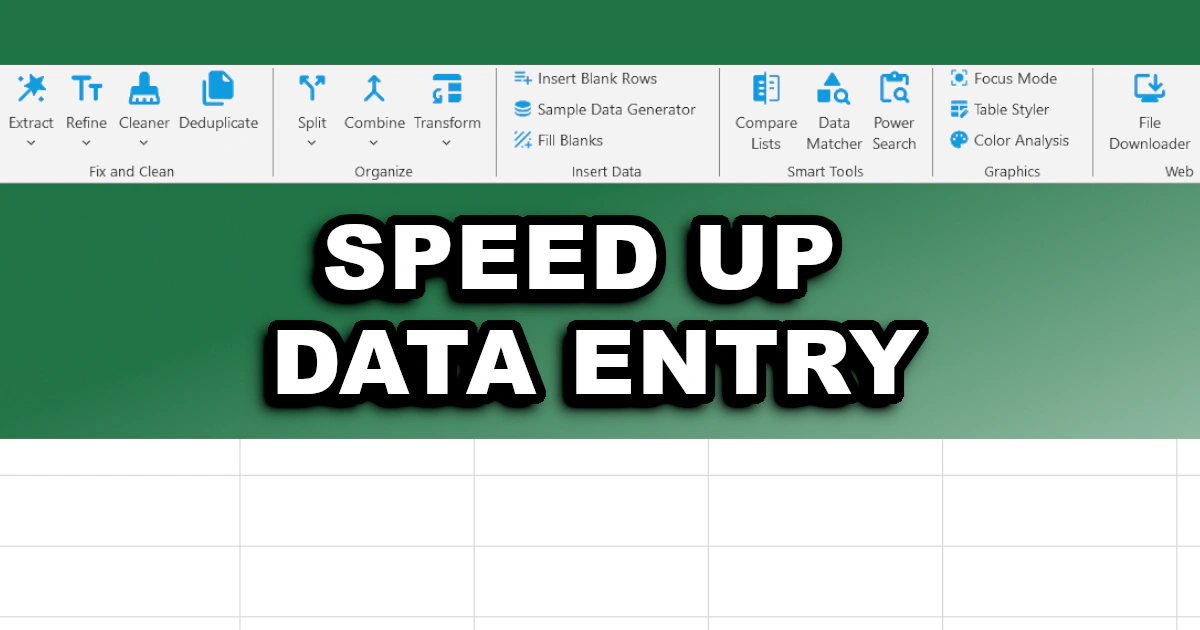
The bigger problem is that most of these tasks seem too simple to automate and too tedious to do quickly. You don't need complex macros or advanced Excel skills. You just need the right tools. XLclick is an Excel add-in with 34 purpose-built tools that replace the most common manual operations with a single button click — no formulas, no VBA, no wasted time. Here are 10 of the most common Excel tasks for virtual assistants and data entry professionals, and exactly how to handle each one faster than ever before.
1. Splitting a Cell With Multiple Values Into Separate Rows for CRM Import
This is one of the most frequent requests VAs get when working with CRM data. A client sends a contact list where multiple values — product interests, tags, or service options — are all packed into a single cell separated by commas. The CRM requires one row per value. Manually splitting each cell and duplicating the adjacent contact data is painstaking work, especially with hundreds of rows.
The Split to Rows tool handles this automatically. Select the column containing the multi-value cells, choose your delimiter (comma, semicolon, or any custom character), and the tool splits each value into its own row while duplicating all adjacent data alongside it. What used to take an afternoon of manual restructuring is done in seconds, and the output lands on a new sheet so your original data stays intact.
2. Downloading Files in Bulk From a URL List
Clients often send spreadsheets with columns full of image links, PDF URLs, or document download links — and ask you to save them all locally. Clicking through each URL, waiting for the browser, and saving each file one by one is one of the most mind-numbing tasks in a VA's workflow. With 200 supplier product images or 150 invoice PDFs to download, this can take a significant chunk of the day.
The File Downloader tool reads a column of URLs from your spreadsheet and downloads every file to a folder on your computer automatically. You can also point it to a second column containing the names you want to assign to each file, so everything arrives already renamed and organized. What used to be a two-hour manual job becomes a one-click operation you can run in the background while you move on to the next task.
3. Standardizing Name Capitalization for Newsletters and CRM Entries
Contact lists assembled from multiple sources — web forms, imported CSVs, manually entered data — almost always have inconsistent capitalization. Names in ALL CAPS from one system, all lowercase from another, randomly mixed from manual entry. Before any mail merge, newsletter send, or CRM import, every name needs to look consistent and professional. Fixing them cell by cell is out of the question at scale.
The Format Case tool converts your entire selection to the capitalization style you choose: UPPERCASE, lowercase, Proper Case (which capitalizes the first letter of every word — perfect for names), or a URL-friendly slugified format for web use. Select the column, pick the format, click Apply. A 500-row name column is standardized in under a second, with no helper column and no formula to copy down.
4. Generating a File List From a Folder for Client Archives
Clients often need a documented inventory of everything inside a project folder — for handovers, audits, billing records, or simply to know what they have. Building that list manually means opening File Explorer, reading file names, typing or copying them into Excel one by one, and adding sizes and dates by hand. For a folder with 300 files across multiple subfolders, this is a half-day task.
The List Files tool scans any folder on your computer — including all nested subfolders if you need a complete inventory — and generates a full Excel list automatically. Each file gets its own row with the file name, size, date modified, and full path included. The output is ready to filter, sort, and share immediately. Hand the client a complete, professional archive document in the time it used to take just to open the folder.
5. Cleaning Up Messy Contact Data With Invisible Characters
Data copied from web forms, CRMs, or client-provided exports often carries hidden problems: invisible characters, non-breaking spaces, and HTML entities that look fine on screen but break every filter, lookup, and match you try to run against the data. You might spend an hour troubleshooting why a VLOOKUP won't find a value that's clearly there — and the culprit is a character you can't even see.
The Remove Text and Spaces tool includes a dedicated option to clean spaces and strip HTML entities and invisible characters from selected cells in bulk. Unlike Excel's TRIM function — which only handles standard spaces — this tool catches the full range of hidden characters that come from web-sourced data. Select the cells, choose the clean spaces option, and everything invisible disappears while your actual content stays exactly as it was.
6. Filling Empty Cells in Exported Reports
Reports exported from project management tools, CRMs, and accounting platforms commonly use a grouped format where a category label appears only once at the top of its group, with all rows below it left blank. This formatting makes sense visually but completely breaks any filter, pivot table, or formula that depends on that column having a value in every row.
The Fill Blanks tool fills every empty cell in your selection using the value from the cell above, below, left, or right — whichever direction matches your data structure. You can also fill blanks with a fixed static value when needed. For a VA working with exported client data on a daily basis, this single tool eliminates one of the most frequent manual fixes in the entire workflow.
7. Removing Duplicate Contacts From Merged Lists
Combining contact lists from multiple clients, platforms, or campaigns almost always produces duplicates. A contact appears in the newsletter list and the CRM export. A product SKU is listed twice after a system migration. Before any list goes out or any data goes in, deduplication is essential — and doing it by hand, or even with Excel's native tool, often lacks the flexibility the job requires.
The Deduplicate tool gives you four ways to handle duplicates: blank out duplicate values while keeping rows in place, copy only the unique entries to a new sheet, extract just the duplicates with occurrence counts, or highlight duplicates with color for manual review. For a VA managing data on behalf of multiple clients, this level of control makes it easy to handle deduplication exactly the way each client needs it done.
8. Splitting Combined Text Into Separate Columns
Full names in one column, addresses in one field, product codes with size and color combined — data that should be in separate columns is often delivered merged together. Every platform and CRM has its own requirements, and reformatting data to fit them is a constant part of data entry work. The standard Excel approach requires knowing the right formula syntax, which takes time to write and debug.
The Text to Columns tool splits cell content into separate columns using any delimiter you choose — comma, semicolon, space, or any custom character. Select the range, pick the delimiter, click Split Now. New columns appear immediately to the right, no formula required. For a VA who handles client data imports daily, this is one of the fastest ways to prepare a file for upload into any system.
9. Combining Data From Multiple Sheets Into One Master File
Clients who manage data across multiple team members often end up with the same information split across separate Excel files — one per region, one per month, one per sales rep. Consolidating them into a single usable file manually means opening each one, copying the data, pasting it into the master, and hoping nothing gets misaligned. With ten files and a Friday deadline, it's a stressful process.
The Combine Sheets tool handles both scenarios: importing multiple external files as separate tabs in one workbook, or stacking all sheets from the current workbook into a single continuous table. Select the mode, choose the files or confirm the sheets, click Start Process. The entire consolidation runs automatically. A task that used to take an hour of careful copy-pasting now takes under a minute.
10. Renaming Batches of Client Files Using Spreadsheet Data
File renaming is one of those tasks that sounds trivial until you're staring at 400 files named with internal codes that need to be replaced with client-facing names from a spreadsheet. Renaming them one by one in File Explorer is error-prone and slow. Writing a script or macro is out of scope for most VA work. There's rarely a fast, reliable middle ground — until now.
The Bulk File Renamer tool connects directly to your spreadsheet data. Point it to the folder containing the files, select the column with the current file names, and select the column with the new names you want to assign. Click Rename Now, and every file in the folder is renamed in seconds based on the values in your sheet. No scripting, no risk of manual errors, no tedious one-by-one renaming. It's the kind of tool that changes how quickly you can turn around a client deliverable.
Work Smarter, Deliver Faster
These 10 tasks are a small sample of what virtual assistants and data entry professionals deal with every day. The common thread is that they're all repetitive, manual, and time-consuming — not because they're complex, but because the right tools haven't been in the right place. XLclick puts 34 of these tools directly into your Excel ribbon, each one available with a single click, no formula knowledge required.
Whether you're processing client contact lists, organizing project files, preparing CRM imports, or cleaning up data exports, the goal is the same: get it done accurately, get it done fast, and move on to the next task. With the right Excel productivity tools in your workflow, the tedious parts of the job stop eating your most valuable hours.

Excel has always been my laboratory. After years of navigating data-heavy workflows, I created XLclick: the definitive add-in that simplifies complex analysis into a single click. It’s built for pros who want to spend less time on spreadsheets and more time on strategy.