
9 Data Cleaning Tasks That Usually Take Hours in Excel
Ask any analyst, marketer, or small business owner what they actually spend most of their time doing in Excel, and the answer is almost never "analyzing data." It's cleaning it. Fixing it. Making it usable. Data cleaning in Excel is one of the most universally painful parts of working with spreadsheets — and it's almost entirely manual by default. Numbers that won't calculate, blank rows scattered everywhere, emails buried in paragraphs of text, invisible characters that break every formula you write.
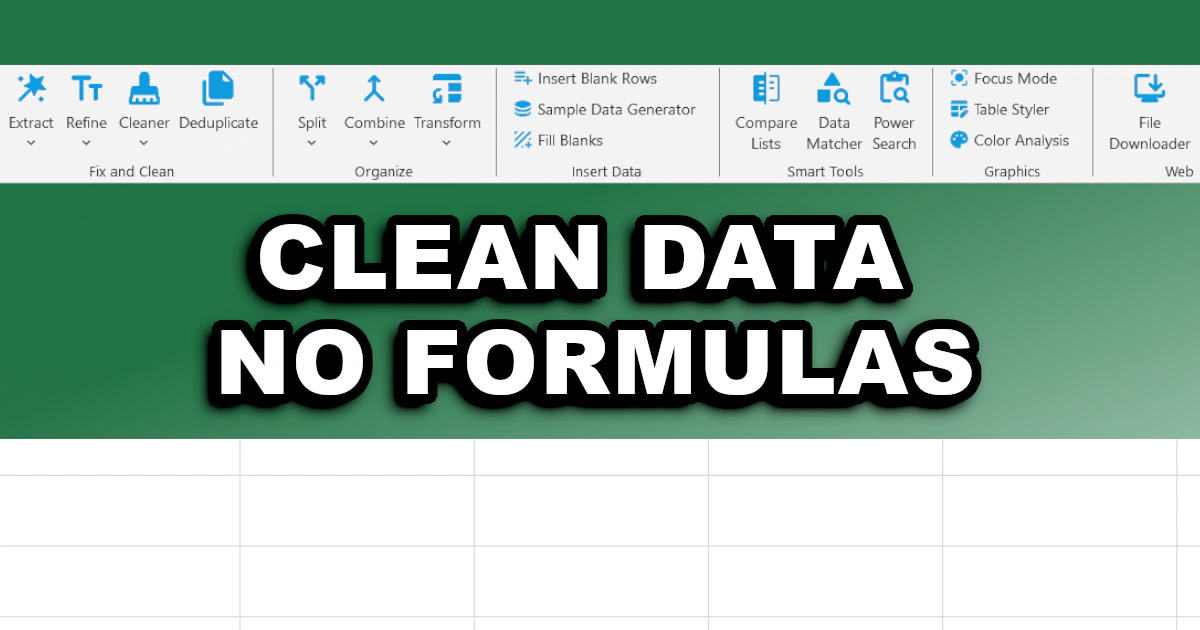
The frustrating part is that none of this is actually complicated work. It's just repetitive, slow, and surprisingly easy to get wrong when you're doing it by hand. XLclick is an Excel add-in built specifically to eliminate this kind of work. It adds 34 tools directly to your Excel ribbon, each one replacing a common, time-consuming task with a single button click — no formulas, no VBA, no workarounds. Here are 9 of the most painful Excel data cleaning tasks, and how XLclick handles each one in seconds.
1. Removing Empty Rows That Cause Infinite Scroll
You delete a block of old data and suddenly Ctrl+End jumps to row 48,000. Excel has lost track of where your real data ends, and now you're dealing with the infamous infinite scroll bug — a spreadsheet that feels enormous even though your actual data fits on two screens. It happens when the used range doesn't reset after deletions, and it makes navigation, printing, and pivot tables all behave strangely.
The Delete Empty Rows/Cols tool fixes both problems at once. It surgically removes all entirely blank rows and columns from your sheet and resets the used range at the same time. No selecting, no filtering, no manual deletion row by row. One click, and the sheet is clean and correctly sized again.
2. Converting Numbers Stored as Text
It's the classic Excel import problem: you bring in a CSV or paste data from another system, and your SUM formula returns zero. You try to sort a price column and 100 appears before 20. Numbers stored as text are one of the most common — and most quietly destructive — data quality issues in spreadsheets. Every calculation, every sort, every chart that depends on those values becomes unreliable.
The Data Fixer tool includes a dedicated option to convert text to numbers across your entire sheet in one operation. It also handles other common import problems at the same time: removing leftover formatting like colors and styles, freezing formulas to static values, and activating clickable hyperlinks from plain-text URLs. Everything that usually requires three separate manual steps handled in one pass.
3. Extracting Email Addresses From Messy Text
Contact lists exported from CRMs, copy-pasted from web pages, or assembled from multiple sources rarely arrive with email addresses neatly isolated in their own column. More often, you get cells that contain a person's name, phone number, email address, and sometimes a note — all in the same field. Extracting each email address manually from hundreds or thousands of rows is slow, tedious, and easy to get wrong.
Extract Emails scans your selected cells and pulls out only the valid email addresses into a clean list automatically. It also auto-corrects common typos in known email providers — catching things like gmial.com or yahho.com before they cause bounced sends — and shows a real-time preview of results before you apply the extraction. The clean list is ready to import into any email platform immediately.
4. Filling Blank Cells With the Value Above
Many exported reports use a formatting shortcut that looks fine on screen but completely breaks Excel data analysis: a category or label appears once at the top of its group, with all the rows below it left blank. It reads naturally as a human, but pivot tables, filters, VLOOKUP, and every grouping formula treat those blank cells as their own category — producing incomplete or completely wrong results.
The Fill Blanks tool fills every empty cell in your selection using the value from the cell above, below, left, or right — whichever direction makes sense for your data. It also supports filling blanks with a fixed static value when you need a placeholder. Select the column, choose your fill direction, click once. The entire column is correctly populated and ready for analysis.
5. Removing Invisible Spaces and HTML Characters
Data copied from websites, exported from web platforms, or generated by automated systems often carries hidden passengers: non-breaking spaces, HTML entities like , zero-width characters, and other invisible characters in Excel that look perfectly fine on screen. But the moment you try to filter, match, or look up values that contain them, everything breaks. EXACT returns FALSE. VLOOKUP can't find the match. Filters don't group correctly.
The Remove Text and Spaces tool includes a dedicated cleaning mode that strips HTML entities, invisible characters, and extra spaces from your selected cells in bulk. Unlike Excel's built-in TRIM and CLEAN functions — which miss many of the characters that actually cause problems — this tool handles the full range of hidden characters from web data. Select the cells, choose the clean spaces option, and everything visible stays while everything invisible disappears.
6. Removing Duplicate Entries
Merged lists, combined exports, and data collected from multiple people or systems almost always contain duplicates. A contact appears twice. An order is logged twice after a system glitch. The same product SKU shows up under slightly different formats. Duplicate data in Excel inflates counts, distorts averages, and produces reports that silently misrepresent reality — often without any obvious sign that something is wrong.
The Deduplicate tool gives you four distinct ways to handle duplicates depending on what you need: delete duplicates while keeping blank rows in their place, copy only unique values to a new sheet, copy only the duplicates to a new sheet with occurrence counts, or highlight duplicates with cell formatting so you can review them before taking action. It's the level of control that Excel's built-in Remove Duplicates simply doesn't offer.
7. Extracting Numbers From Mixed Text Cells
A supplier sends a price list where every value is written as "Price: $29.99" or "Total: 1,480 EUR." Your e-commerce export has quantities formatted as "150 units" or "Qty: 48." These cells look like data but behave like text — Excel can't calculate with them, and every formula that references them returns an error or zero. Cleaning mixed text and number cells manually means editing each one individually.
The Extract Digits tool removes all letters and symbols from your selected cells and leaves only the raw numbers, with full support for decimal values. It processes the entire selection at once and shows a real-time preview of the extracted numbers before you apply the change. The result is a clean numeric column that calculates, sorts, and charts correctly without any manual editing.
8. Standardizing Text Case Across a Column
Inconsistent capitalization is a surprisingly common source of data quality problems in Excel. The same category appears as "Electronics," "ELECTRONICS," and "electronics" in different rows — and pivot tables split them into three separate groups. Product names entered by different people follow different conventions. Client names arrive in ALL CAPS from a legacy system. Every inconsistency means broken groupings and incorrect reports.
The Case Converter tool switches your selected cells between UPPERCASE, lowercase, Proper Case, or a URL-friendly slugified format — removing accents and replacing spaces with hyphens — in a single click. No helper column, no formula like PROPER() or LOWER() to apply and paste-as-values. Select the cells, choose the format, click Apply. The column is consistent immediately.
9. Anonymizing Sensitive Data Before Sharing
Before sending an Excel file to a freelancer, an external agency, or a third-party service provider, personal data has to go. Under GDPR and CCPA, sharing real customer names, email addresses, or other personally identifiable information without proper controls is a compliance risk — even if the file is only being used for testing or design purposes. The standard workaround is to manually replace sensitive values one by one, which is both slow and inconsistent.
The Data Anonymizer tool replaces real names and emails in your selected cells with randomly generated but realistic-looking fake data. You can replace values with random names, email addresses, physical addresses, or randomized digit sequences — depending on what type of data you're masking. The result is a working file that looks real enough to use for any legitimate purpose, with no actual personal data exposed.
Stop Spending Half Your Day Cleaning Data
These nine tasks represent a significant portion of the time most Excel users spend on work that isn't actually analysis — it's preparation. Fixing the data so that the real work can begin. With XLclick, every one of these operations is available directly in your Excel ribbon, ready when you need it, completed in seconds instead of minutes or hours.
The add-in requires no formula knowledge, no VBA, and no external tools. Just Excel, a ribbon button, and the time you used to spend doing things the slow way — now freed up for the work that actually matters. If manual data cleaning in Excel is eating into your day, it doesn't have to.

Excel has always been my laboratory. After years of navigating data-heavy workflows, I created XLclick: the definitive add-in that simplifies complex analysis into a single click. It’s built for pros who want to spend less time on spreadsheets and more time on strategy.