
The SEO & Content Manager’s Excel Toolkit: 8 Automated Workflows
If you work in SEO or content management, your relationship with Excel is complicated. On one hand, it's the one tool that can hold a 50,000-row Screaming Frog crawl export, a Google Search Console performance dump, and a Semrush keyword report all in the same place. On the other hand, getting those files into a usable state takes an embarrassing amount of manual work — splitting, cleaning, combining, reformatting — before any actual analysis can begin.
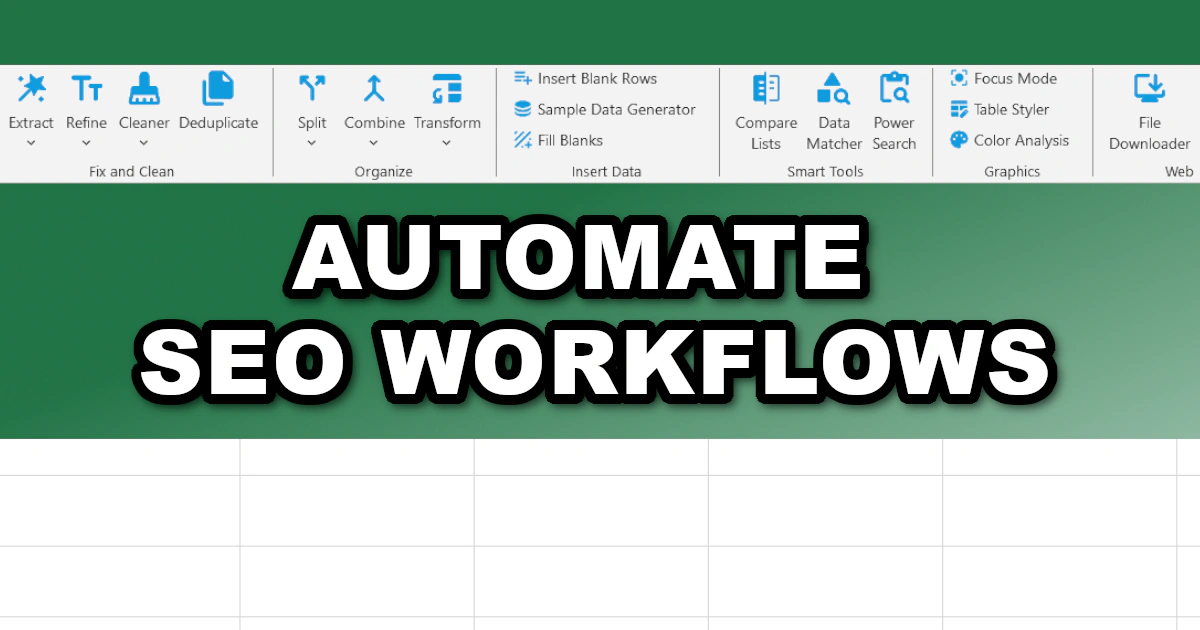
The dirty secret of SEO data workflows is that most of the time isn't spent on strategy or insights. It's spent on preparation. Stripping domains out of full URLs. Stacking monthly reports into a single sheet. Converting page titles into URL slugs. Hunting for specific keywords across thousands of rows. These are not analytical tasks — they're janitorial ones, and they happen every single week. XLclick is an Excel add-in that automates exactly this kind of work, replacing repetitive manual operations with single button clicks. Here are 8 workflows every SEO and content manager will recognize — and how to stop doing them the slow way.
1. Isolating Root Domains From a List of Full URLs
You export a backlink report from Semrush or Ahrefs and you've got a column of 5,000 full URLs — complete with paths, query strings, and subdomains. What you actually need for analysis is the referring domain, not the full URL. Grouping by full URL in a pivot table is useless. You need root domains, and extracting them manually from thousands of rows is not a realistic option.
The Extract URLs tool finds all web addresses in your selected cells and lets you choose between extracting the full URL or just the root domain. Select the column, choose root domain extraction, and a clean domain list lands in a new column in seconds. From there, pivot analysis by referring domain, deduplication, and frequency counting all become straightforward — without a single formula or manual edit.
2. Combining Monthly Reports From Different Tools Into One Sheet
Monthly SEO reporting almost always means working with multiple separate files: a Search Console export for January, one for February, one for March, plus separate keyword ranking exports from your tracking tool. Each file has the same structure. Each one needs to end up in the same master sheet for trend analysis. Manually opening each file, copying the data, and pasting it into a master without misaligning columns is a slow, error-prone ritual that happens every single month.
The Combine Sheets tool handles both common scenarios in one operation. You can import multiple external Excel or CSV files as separate tabs in one workbook — useful when you want to keep each month visible as its own sheet — or consolidate all sheets from the current workbook into one continuous stacked table, which is what you need for proper time-series analysis. Choose your mode, select the files or confirm the sheets, click Start Process. The consolidation runs automatically, and the data is structured and ready for pivot tables immediately.
3. Turning Page Titles Into URL-Friendly Slugs
You've drafted 80 new article titles in a content plan spreadsheet. Before they go into the CMS, every title needs a corresponding URL slug: lowercase, no accents, spaces replaced with hyphens, special characters removed. Writing slugs manually for 80 titles is fine. For 300 titles, it's a meaningful time investment. And because slugs are critical for on-page SEO, getting them wrong — an extra space, a stray character, an accent that breaks the URL — has real consequences.
The Format Case tool includes a dedicated URL-friendly slugify option that handles the entire transformation automatically. It converts text to lowercase, replaces accented characters with their ASCII equivalents, and replaces spaces with hyphens — exactly the format required for a clean, SEO-optimized URL slug. Select your title column, choose the url-friendly option, click Apply. All 300 slugs are generated correctly in one pass, ready to paste directly into your CMS.
4. Finding and Highlighting Specific Keywords Across Thousands of Rows
A client asks you to audit every page title and meta description in a 10,000-row crawl export for a specific keyword — or a list of keywords — to check for cannibalization, over-optimization, or missing targets. Excel's native Find tool searches one sheet at a time, doesn't highlight results in the spreadsheet itself, and gives you no way to review matches in context before acting on them.
The Power Search tool searches across all sheets simultaneously, supports keyword pattern matching with regular expressions, and — crucially — highlights matched cells in the color of your choice directly in the spreadsheet before you make any replacements. This means you can visually scan all matching titles and descriptions in context, flag the ones that need editing, and review the full picture before taking action. For large-scale SEO content audits, this level of control over search and highlight is something Excel's built-in tools simply can't provide.
5. Extracting Email Addresses From Outreach Prospect Lists
Link building and digital PR outreach often starts with a raw prospect list — blog names, page URLs, and contact information scraped or copied from various sources into a single messy Excel file. Email addresses are buried in cells alongside names, social handles, and notes. Before any outreach tool can process the list, the emails need to be in their own clean column, free of typos and formatting noise.
The Extract Emails tool scans your selected cells and pulls out only the valid email addresses into a clean list automatically. It also auto-corrects common typos in known email providers, catching misspellings that would cause bounced outreach emails — a small detail that has a measurable impact on outreach deliverability rates. A live preview lets you confirm the output before committing, and the clean list is ready to import into any outreach platform immediately.
6. Removing Duplicate URLs From Keyword and Crawl Exports
Keyword exports, crawl data, and Search Console reports almost always contain duplicate entries. The same URL appears multiple times with different query parameters. The same keyword shows up in multiple position brackets. The same page is crawled through multiple internal link paths. Before any meaningful SEO data analysis, these duplicates need to be identified and handled — but the right action depends on the context, and Excel's Remove Duplicates button is a blunt instrument.
The Deduplicate tool gives you full control over how duplicates are processed. You can delete duplicates while keeping their row positions blank, copy only the unique values to a new sheet, extract just the duplicates with occurrence counts to understand what's appearing most frequently, or highlight all duplicates for manual review. For an SEO working with large exports from multiple tools, the ability to first see which URLs or keywords are duplicating — and how many times — before deciding what to do is genuinely useful.
7. Cleaning Invisible Characters From Exported CSV Data
Anyone who works regularly with CSV exports from SEO tools knows the problem: data that looks clean in the file but behaves unexpectedly in Excel. VLOOKUP fails to find values that are clearly present. Filters don't group identical strings correctly. Two cells that look identical return FALSE from an EXACT formula. The culprit is almost always invisible characters — non-breaking spaces, HTML entities, or zero-width characters embedded in the exported data.
The Remove Text and Spaces tool includes a dedicated clean spaces mode that strips HTML entities and invisible characters from your selected cells in bulk. Unlike Excel's TRIM function, which only handles standard space characters, this tool catches the full range of hidden characters that come from web-based tool exports. Run it on any column that's behaving strangely after a CSV import, and your lookups, filters, and formulas will work correctly again immediately.
8. Splitting Combined Data Into Separate Columns for Structured Analysis
Search Console exports, log file analyses, and tool-generated reports frequently deliver data that belongs in separate columns packed into a single field. URL paths that include query parameters you need isolated. Combined location and language codes. Breadcrumb paths where each level should be its own column. Getting from the raw export format to a structured, analyzable table requires splitting — and doing it correctly matters for SEO reporting accuracy.
The Text to Columns tool splits cell content into separate columns using any delimiter you choose: comma, semicolon, space, or any custom character. Select the range, set the delimiter, click Split Now, and the new columns appear immediately to the right. For more complex extractions — like pulling everything between two specific characters, or extracting text after a specific string — the Pattern Matcher tool handles advanced extraction using start and end points or regex patterns. Between the two tools, virtually any structured split that an SEO workflow requires can be handled without writing a single formula.
An SEO's Time Is Too Valuable for Manual Data Prep
The eight workflows above represent a fraction of what SEO professionals and content managers handle in Excel on a weekly basis. The common thread is that none of them require strategic thinking — they're preparation tasks, data hygiene tasks, formatting tasks. Necessary, unavoidable, and deeply unglamorous. Every hour spent doing them manually is an hour not spent on keyword strategy, content analysis, or client reporting that actually moves the needle.
XLclick puts 34 of these tools directly into the Excel ribbon, each one ready with a single click and no formula knowledge required. Whether you're processing a fresh crawl export, building a monthly performance report, or preparing a content plan for CMS upload, the goal is always the same: less time on the data, more time on the decisions. With the right Excel automation tools in your SEO workflow, that balance is finally achievable.

Excel has always been my laboratory. After years of navigating data-heavy workflows, I created XLclick: the definitive add-in that simplifies complex analysis into a single click. It’s built for pros who want to spend less time on spreadsheets and more time on strategy.