
9 Excel Tasks for E-commerce Catalog Management
Managing a product catalog in Excel is one of those jobs that sounds straightforward until you're actually doing it. Thousands of SKUs. Dozens of attributes per product. Supplier data in five different formats. Images with names that match nothing in your spreadsheet. Prices exported as text strings. Variant combinations packed into single cells. Before a single product goes live on your store, there's an enormous amount of formatting, cleaning, and restructuring work — and most of it falls on whoever manages the catalog.
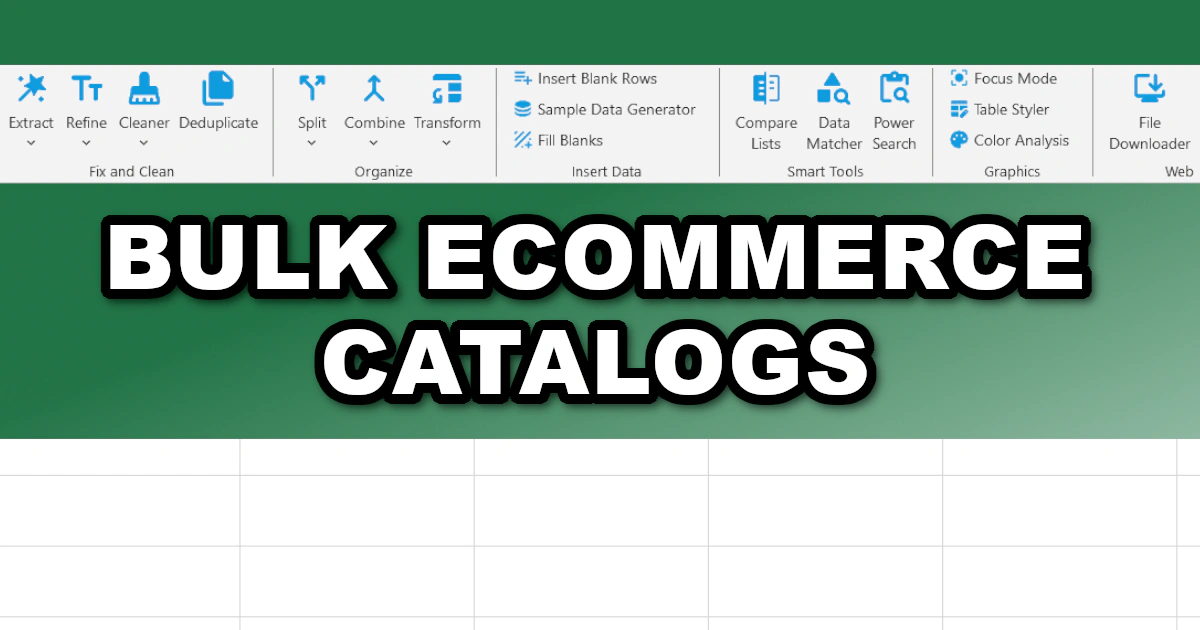
The problem isn't a lack of Excel skill. It's that the standard tools weren't built for the volume and variety of e-commerce data management. XLclick is an Excel add-in with 34 tools that replace the most repetitive catalog operations with a single click — no formulas, no manual cell-by-cell editing, no wasted afternoon. Here are 9 tasks that every e-commerce catalog manager encounters regularly, and how to handle each one in a fraction of the usual time.
1. Renaming Thousands of Product Images Using Your Spreadsheet Data
This is one of the most painful tasks in catalog management. A supplier delivers 2,000 product images named with their internal codes — something like IMG_4821.jpg. Your store requires images named by your own SKU or product slug. The spreadsheet has both the old names and the new ones. The only thing standing between you and a correctly named image library is doing the renaming — and doing it for 2,000 files, one by one in File Explorer, is a multi-hour job that no one should have to do manually.
The Bulk File Renamer tool connects directly to your spreadsheet. Point it to the folder containing the images, select the column with the current file names, and select the column with the new names. Click Rename Now, and every file in the folder is renamed in seconds based on the values in your sheet. No scripting, no risk of typos, no files accidentally skipped. The product image library is correctly named and organized before the next task begins.
2. Merging Product Attributes From Multiple Columns Into One Field
Many e-commerce platforms and PIM systems require a single combined field for attributes that live in separate columns in your spreadsheet — color and size merged into one variant label, brand and model combined into a full product name, or material, weight, and dimensions joined into a single specification string. Building these combined fields manually, or writing CONCATENATE formulas for thousands of rows, is slow and fragile when the source data changes.
The Combine Columns tool merges content from multiple selected columns into a single column using any separator you choose — a space, a hyphen, a comma, or any custom character. Select the columns you want to join, set the separator, click Combine Now. Every row is processed simultaneously and the merged values appear instantly. For a catalog with 3,000 products and multiple attributes to combine per product, this replaces hours of formula work with a single operation.
3. Generating Realistic Test Data for Store Setup and QA
Before going live with a new store or a new catalog import template, you need to test the import with realistic data. Using real customer names or actual product records for QA testing is both a privacy risk and a logistical hassle — real data requires cleanup after testing, and mistakes in a test environment can propagate to production. Creating realistic-looking fake data manually for 200 test rows is tedious enough to get skipped, which means testing happens with placeholder garbage data that doesn't catch real formatting errors.
The Sample Data Generator tool instantly generates realistic names, email addresses, and phone numbers in any quantity you specify. Choose the data type from the dropdown, set the number of rows, choose random or alphabetical sort order, and click Generate Now. The test data lands in your spreadsheet immediately, ready for a realistic import test that actually validates the template. For developers and catalog managers setting up store import workflows, this removes one of the most annoying bottlenecks from the QA process.
4. Extracting Clean Prices From Messy Supplier Data
Supplier price lists rarely arrive in a format that's immediately usable. Prices come formatted as "Price: €29.99," "RRP $149.00," or "Unit cost: 12.50 USD" — labels and currency symbols mixed with the actual numeric value in the same cell. Excel treats all of these as text, which means no calculations, no margin formulas, no sorting by price. Every affected cell needs to be manually edited before the catalog is functional.
The Extract Digits tool removes all letters, symbols, and currency markers from selected cells and leaves only the raw numbers, with full support for decimal values. Select the price column, enable decimal extraction, and click run. A real-time preview confirms the output before you apply it. The entire column of messy price strings becomes clean numeric values in seconds — ready for margin calculations, price comparisons, and platform upload without any manual editing.
5. Standardizing Product Name Capitalization Across the Catalog
A product catalog assembled from multiple supplier data sheets almost always has inconsistent capitalization. Names in ALL CAPS from one supplier, title case from another, and completely random casing from whoever typed the rest. On a storefront, this inconsistency looks unprofessional and undermines the brand. On a marketplace like Amazon, inconsistent product listing titles can affect discoverability and click-through rates.
The Format Case tool standardizes capitalization across your entire selection in one click. Choose Proper Case to capitalize the first letter of every word — the standard for product titles — or choose any other format the platform requires. The tool processes all selected cells simultaneously, with no helper column and no formula to maintain. A 5,000-row product name column is standardized in under a second, ready for upload with consistent, professional formatting throughout.
6. Expanding Product Variants Into Separate Rows for Platform Import
Many product management workflows store variants in a condensed format — a single row per product with all sizes or colors listed in one cell, separated by commas. This is compact for internal use, but most e-commerce import formats require a separate row for each variant, with the product details duplicated alongside each one. Manually splitting each product's variants into rows and copying the parent data across is labor-intensive at any scale above a few dozen products.
The Split to Rows tool converts multi-value cells into individual rows automatically, duplicating all adjacent data — product name, SKU base, price, description — alongside each split value. Select the variant column, choose the delimiter, click Run, and the expanded dataset lands on a new sheet with the original data untouched. A 500-product catalog where each product has 4 size variants becomes a correctly structured 2,000-row import file in one operation.
7. Cleaning Up Catalog Imports With Invisible Characters and Prefixes
Data exported from supplier portals, scraped from websites, or converted from PDFs regularly arrives with hidden problems: invisible characters, non-breaking spaces, HTML entities, or systematic prefixes like "REF:" or "ART:" in front of every product code. These invisible issues break lookups, cause import rejections, and make filters behave unpredictably — and they're impossible to fix manually because you often can't even see what you're fixing.
The Remove Text and Spaces tool handles both problems. The clean spaces mode strips HTML entities and invisible characters from selected cells in bulk. The prefix/suffix removal modes let you define exactly what to strip from the beginning or end of every cell — remove the first N characters, strip everything before a specific string, or define a custom pattern. A real-time preview shows the result before you apply it. Run both in sequence and the catalog data is clean, consistent, and import-ready.
8. Downloading Product Images in Bulk From a Supplier URL List
Suppliers often provide product images not as a downloadable ZIP file but as a spreadsheet column full of URLs — one image link per product. Downloading each image individually by opening URLs in a browser and saving files manually is impractical for any catalog larger than a handful of products. With 1,000 products and one image each, that's 1,000 browser interactions — an entire day of mechanical clicking that adds no value to the process.
The File Downloader tool reads the URL column from your spreadsheet and downloads every file to a local folder automatically. You can also connect it to a second column containing the names you want to assign to each file — SKU codes, product slugs, or any naming convention your store requires — so every image arrives already correctly named. What was a full-day task becomes a background operation you run while moving on to the next item on the list.
9. Removing Duplicate SKUs Before Uploading to the Store
Duplicate product entries are one of the most common — and most disruptive — problems in e-commerce catalog management. A product appears twice after a supplier update overwrites data already in the sheet. The same SKU is present in both the existing catalog and the new import file. Duplicates in a platform import create conflicting listings, incorrect inventory counts, and broken product pages that erode customer trust and SEO rankings.
The Deduplicate tool gives you precise control over how duplicates are handled before any data goes anywhere. Highlight duplicates first to review which SKUs appear more than once and decide whether they represent genuine variants or data errors. Then copy only the unique values to a clean sheet for the final import, or extract just the duplicates with occurrence counts to audit the problem in detail. For a catalog quality control workflow, catching and resolving duplicates before upload is far less expensive than fixing them after the fact.
Build a Faster Catalog Management Workflow
Every one of these nine tasks is a regular part of e-commerce catalog management. None of them are glamorous. All of them are necessary. And all of them, in their manual form, consume time that could be spent on pricing strategy, conversion optimization, or supplier negotiations — work that actually grows the business.
XLclick puts 34 tools like these directly into your Excel ribbon, available with a single click, with no formula knowledge required. Whether you're onboarding a new supplier, launching a new product line, or maintaining an existing catalog of thousands of SKUs, the right tools turn a week of data prep into an afternoon. That's time you get back every single cycle.

Excel has always been my laboratory. After years of navigating data-heavy workflows, I created XLclick: the definitive add-in that simplifies complex analysis into a single click. It’s built for pros who want to spend less time on spreadsheets and more time on strategy.