
KuTools Alternative for Excel on Windows and Mac
Managing data in Excel can be time-consuming for freelancers and small business owners who aren’t formula wizards. Two popular add-ins promise to simplify common tasks with one-click tools: XLclick and KuTools for Excel.
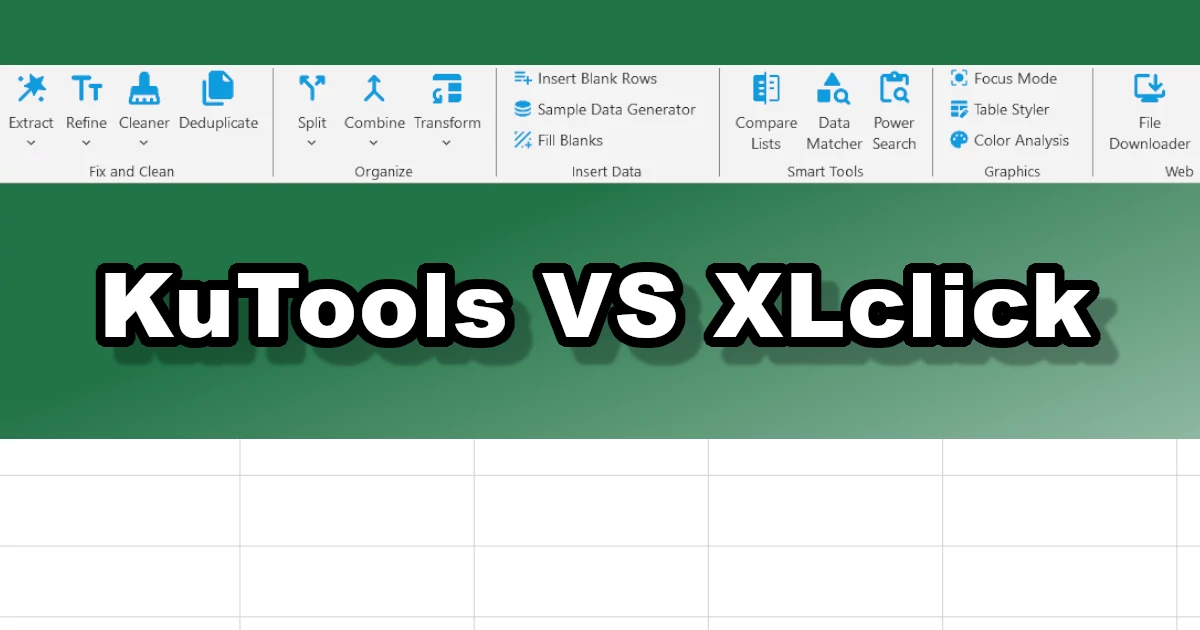
This comparison will break down the major differences and highlight why XLclick is the smarter, friendlier choice for non-technical users. Whether you need to clean data, reorganize sheets, or format a table, we’ll show how XLclick’s ready-made buttons beat KuTools’ feature overload in ease of use and efficiency.
One-Click Simplicity vs Feature Overload
On paper, both XLclick and KuTools offer powerful Excel enhancements. In practice, though, they cater to different audiences. XLclick is built for simplicity: its ribbon presents dozens of single-click functions (from text cleaning to data merging) so you never need to write formulas. KuTools, by contrast, packs over 300 functions into a multi-tab interface. While that breadth sounds impressive, it can overwhelm users who only need a handful of tools.
- XLclick: A single, streamlined tab with ready-made features. Each button does a specific task (like “Remove Blanks” or “Extract Emails”) with instant previews or results.
- KuTools: Multiple ribbons and menus hosting hundreds of tools. You often need to hunt through categories to find the feature you want, which can slow down non-technical users.
Key Differences at a Glance
Here’s a side-by-side snapshot of how XLclick and KuTools compare on important fronts:
| Aspect | XLclick | KuTools |
|---|---|---|
| Platform | Excel 2016–365 on Windows & Mac | Windows only (Excel 2007+; no Mac version) |
| Number of Tools | ~30 focused tools for common tasks | 300+ diverse features across many categories |
| Ease of Use | One-click buttons with previews; no formula knowledge needed | Many sub-menus; requires learning specific tools |
| Unique Features | Data Anonymizer, Test Data Generator, Bulk Downloader, File List, Smart Matcher, etc. | Advanced merging/splitting, selection tools, etc. (no native anonymization or file utilities) |
| Target Users | Freelancers, marketers, small businesses, Excel beginners | Excel power users and analysts |
User-Friendly Tools for Non-Experts
Unlike some Excel add-ins packed with endless menus, XLclick keeps things straightforward. Each feature is labeled clearly (e.g. “Extract Emails” or “Remove Blanks”) and performs its action in one go. When you select a range and press a button, XLclick often shows a live preview of what the output will look like before you commit. This makes it safe and approachable for marketers and small business owners who just want results, not to write or debug complex formulas.
For example, XLclick provides straightforward tools for everyday tasks:
- Cleaning Data: Features like Remove Blanks or Text Cleaner strip unwanted spaces or characters from your data instantly.
- Extracting Info: With one click, Extract Emails or Extract URLs pulls valid addresses out of messy text into a clean list (even auto-correcting common typos).
- Formatting Tables: The Instant Pro Look button formats tables beautifully (freezing headers, alternating row colors, autofitting columns) without manual steps.
Powerful Data Utilities in XLclick
On top of basic cleanup, XLclick packs several specialty tools that you won’t find in KuTools (at least not as one-click features). For example, marketers often need to mask or scramble customer data before sharing it; XLclick’s Data Anonymizer replaces real names and emails with random ones in seconds (helping you stay compliant with GDPR/CCPA). If you need sample data for a demo, the Generate Test Data button creates realistic names, emails, and phone numbers instantly. And when it comes to working with files, XLclick truly shines: you can Download Multiple Files from a list of URLs, Batch Rename external files based on spreadsheet contents, or even generate a List of Files in a folder (complete with metadata) right inside Excel.
- Data Anonymizer: Mask or replace sensitive info (names, emails, addresses) with random dummy data, making it easy to share worksheets securely.
- Generate Test Data: Create hundreds of realistic names, emails, and phone numbers at the push of a button for mockups and demos.
- File Operations: Use List Files to import a directory’s file list (with paths and sizes) into Excel, Bulk Downloader to download images/PDFs from URLs, or Batch Rename to rename files by spreadsheet values.
- Smart Data Matcher: Match and join data across sheets without VLOOKUP; it automatically finds the best lookup strategy to link related records.
- Navigation & Formatting: Features like Focus Mode (highlights the active row/column) and Instant Pro Look (auto-formatting) speed up everyday workflow.
KuTools Overview
KuTools is a mature Excel add-in with a huge library of tools (over 300), many of which are also aimed at boosting productivity. It includes features for combining sheets, removing duplicates, splitting cells, batch inserting rows or columns, advanced selection tools, and more. In fact, most standard tasks can be done in some way with KuTools. However, this power comes with complexity: its tools are organized into multiple menu categories (such as Combine, Insert, Select, etc.), and many actions require navigating dialog boxes. For a busy freelancer or marketer, XLclick’s focused, one-click approach often feels much more intuitive.
- Combine Sheets: Both XLclick and KuTools let you merge multiple worksheets into one. XLclick does it from one ribbon with just a few clicks, while KuTools requires going through its Combine menu.
- Remove Duplicates: Both have duplicate-handling tools, but XLclick clearly labels the options (delete, highlight, copy) in one tab, whereas KuTools separates them into its Select and Sort menus.
- Merge/Split Cells: KuTools can merge cells without losing data, but XLclick’s join and split utilities (horizontal or vertical join/split by delimiters) simplify text combination in spreadsheets.
Which Add-In Suits You?
In the end, both XLclick and KuTools can speed up your Excel workflow, but they serve different needs. If you want a lightweight toolkit with one-click solutions (no need to memorize or write formulas) and you value simplicity, XLclick is the winner. It’s especially great for small businesses, freelancers, or anyone who just needs practical results fast. KuTools is powerful but can feel like a double-edged sword of complexity. By choosing XLclick, you get a friendly set of tools that solves day-to-day tasks quickly—so you spend less time clicking menus and more time using your data.
Ready to try XLclick? Most users find the intuitive ribbon and clear labels a breath of fresh air. With a free trial available, you can see for yourself how one-click tools replace hours of work. Give XLclick a spin and experience Excel the easy way!

Excel has always been my laboratory. After years of navigating data-heavy workflows, I created XLclick: the definitive add-in that simplifies complex analysis into a single click. It’s built for pros who want to spend less time on spreadsheets and more time on strategy.